
Loading...
Loading...
Loading...
Loading...
Loading...
Loading...
Loading...
Loading...
Loading...
Loading...
Loading...
Loading...
Loading...
Loading...
Loading...
Loading...
Loading...
Loading...
Loading...
Loading...
Loading...
Loading...
Loading...
Loading...
Loading...
Loading...
Loading...
Loading...
Loading...
Loading...
Loading...
Loading...
Loading...
Loading...
Loading...
Loading...
Loading...
Loading...
Loading...
Loading...
Loading...
Loading...
Loading...
Loading...
Loading...
Loading...
Loading...
Loading...
Loading...
Loading...
Loading...
Loading...
Loading...
Loading...
Loading...
Loading...
Loading...
Loading...
Loading...
Loading...
Loading...
Loading...
Loading...
Loading...
Loading...
Loading...
Loading...
Loading...
Loading...
Loading...
Loading...
Loading...
Loading...
Loading...
Loading...
Loading...
Loading...
Loading...
Loading...
Loading...
Loading...
Loading...
Loading...
Loading...
Loading...
Loading...
Loading...
Loading...
Loading...
Loading...
Loading...
Loading...
Macros (formerly known as Chains) let you chain together multiple commands to automate repetitive tasks.
An introduction of Audacity's loop-based music making capabilities
You can find loops all around the internet, including Muse Hub.
You also can manually convert a section of a song to a loop.
Making audio loopsWhen importing a loop to the project, Audacity will automatically attempt to match the tempo. If it's unable to, you can instead adjust the tempo yourself by holding Alt (macOS: Option)and dragging the edge of a clip to stretch it to fit.
Additionally, if the loop is in a different key to your project, you can also select a clip, and press Alt+↓↑ to adjust the pitch by semitones.
Audacity does not feature a looping feature as known from traditional DAWs at this point. Instead, you can repeat via copy-pasting the loop, or using the Effects -> Special -> Repeat effect.
This page lists Audacity error codes and provides some troubleshooting steps on how to fix them.
Your microphone gain may be reduced. To fix this, see: Setting recording and playback levels
You may be attempting to record a Bluetooth device at an unsupported sample rate. To fix this, see Audacity records silence when using a Bluetooth headset as a recording device
You may be attempting to record a device which doesn't produce any sound. To fix this,
ensure that all parts of the device are connected properly (cables, microphone, interface, etc),
that microphones in need of phantom power are provided with that,
that no mute switches on any devices are turned on,
that no faders are turned down, and
that an input signal is being produced by the source.
Learn about causes and fixes for this error.
This error occurs if you try to record an unsupported number of channels.
Go to Audio Setup -> Recording channels and choose a different number of channels. Values which typically work are 1 (mono), 2 (stereo), and the highest number presented on the list. So for a 8 channel interface, 8 should work.
If the troubleshooting steps aren't working for you, feel free to ask in our communities:
Learn about causes and fixes for this error.
This error indicates a problem with the hardware used for playback, whether it is permissions, drivers, connections, or if you ask the device to do something it cannot do. You can attempt the following steps to resolve it.
Common troubleshooting stepsIf the troubleshooting steps aren't working for you, feel free to ask in our communities:
Learn about causes and fixes for this error.
Error code 11
Error code 13
Error code 101
These errors may occur when the project you're trying to open is in a read-only location.
These errors may also occur when attempting to load a damaged .aup3 project file.
Make sure Audacity has write access to the folder the file is located in, or move the project file to a different location.
If your project is damaged, you can also try .
Learn about causes and fixes for this error.
If you are on a low-end machine, this may be caused by insufficient resources, specifically memory.
This also can happen if you assign yourself a static IP in the hosts file.
Try closing other programs or restarting your computer to clear up memory.
If you're using static IP assignments in the hosts file, simply commenting out the assignment may solve this.
Learn about causes and fixes for this error.
This is caused by missing realtime effects.
Audacity currently looks for plugins in absolute paths. This means that if you open a project that was created on a different computer, Audacity will continue to check for the plugins in the exact same locations as they were on the old computer.
You can replace any missing effects from the effects sidebar.
Before opening a project on a new computer, ensure that all plugins you've used are in the same location as where they would've been in your old computer.
If the troubleshooting steps aren't working for you, feel free to ask in our communities:
Learn about causes and fixes for this error.
Learn about causes and fixes for this problem.
Audible input monitoring usually causes a delay (latency) of the live recording input due to the time it takes to reach your headphones.
To prevent this, turn input monitoring off. This can be done by choosing Transport > Transport Options > Enable audible input monitoring and clicking it to remove the check (tick) mark.
To listen to the live recording input without playthrough latency requires hardware monitoring - that is; the input signal must be routed directly through the audio device from the input to the output rather than being passed through software from input to output.
If the troubleshooting steps aren't working for you, feel free to ask in our communities:
Learn about causes and fixes for this problem.
The default project sample rate in Audacity (and, indeed, most other devices) is 44100 Hz, whereas most Bluetooth headsets utilize different sample rates: 8000 Hz, 16000 Hz and, rarely, 24000 Hz.
In order for Audacity to record audio from a Bluetooth headset, the sample rate must be set to a value supported by your Bluetooth device. To do that, go to Audio Setup -> Audio Settings and then set Project Sample Rate to a setting supported by your headset. Typically, this will be 16000 Hz. Make sure you record on a new track.
If the troubleshooting steps aren't working for you, feel free to ask in our communities:
Learn about causes and fixes for this problem.
Audacity can use many types of microphones and other audio devices to record audio.
You can connect your mic by plugging it into the appropriate port. In general, this means:
If you have a USB mic, plug it into a USB port.
If you have a mic with a 3.5mm jack, plug it into a mic-in port.
If you have an XLR mic, plug it into an XLR-USB audio interface and the interface into the USB port.
How you will connect your microphone will depend on your computer model and your microphone. Use your manuals or support pages for further information. You may need adapters if your computer does not have the correct ports for your microphone.
Once you have plugged in your microphone into your computer, select the microphone to record from the list of available recording devices in the Audio Setup toolbar.
This toolbar may display some unexpected devices here (for example, webcams), as well as virtual devices (software pretending to be a microphone). Select the entry that matches the microphone you actually want to use. The Audio Setup toolbar will also allow you to select whether you'll be recording in Mono or Stereo.
Select the microphone icon and choose Start Monitoring (shown below) and tap your mic with your finger. If you see the green bar move when you tap the mic, you have selected the correct device in the previous step.
Then try to speak in a normal volume. In general, the volume should remain in the green zone throughout (in general, between -18 and -12 dB is best).
Next, make a test recording. To start recording your voice in Audacity, simply press the red record button.
When you have ended the recording, listen back to it. If everything went well, you should now hear your voice clearly. Once you hear your voice clearly, you should now be able to continue with the next steps.
If you run into trouble with any of these steps, you may find the solution here:
Once you've made your recording, make sure to save your work. This applies regardless of whether you intend on editing it later or not.
If you want to edit your recording afterwards:
The recording and playback levels can be set using the sliders in the Recording and Playback meter toolbars:
The slider with the microphone icon sets the recording volume on a system level. If the operating system is prohibiting this action, this slider will be inactive.
The slider with the speaker icon sets the playback volume relative to the system volume. It does not affect the volume of exported files, use the gain sliders on each track to edit those.
Audacity comes with 4 themes preinstalled: Light, Dark, Classic and High Contrast. You can switch between themes by going to Edit -> Preferences -> Interface (macOS: Audacity -> Preferences -> Interface)
Once you have chosen a theme, click OK to close the preferences dialog and load the new theme.
Custom themes commonly are distributed as files called ImageCache.png. You can find some custom themes here:
To install a custom theme, place the ImageCache.png in the following folders. You may create the folders if they aren't present.
Each effect in Audacity comes with a predefined set of values that you can change and save according to suit your needs and workflow.
When you select an effect to apply to your audio (for example Effect > Noise Removal & Repair > Noise Gate...) Audacity will show you the effect settings window where you can change the different values according to your needs.
After you find the settings that best suit your needs you can use the Presets & settings button to save your settings for future use:
Click the Presets & settings button and select Save preset...
The click removal effect can automatically remove clicks across an entire track.
To use it:
Select the audio you want to remove the clicks from. Tip:
Go to Effect > Noise Removal and Repair > Click Removal
Crossfades blend the end of one song with the beginning of the next one. There are several methods to achieve this in Audacity.
If you have two clips in one track you'd like to crossfade, you can use Crossfade Clips effect. To use it:
Have two clips in one track.
Select the region you'd like to apply the crossfade to. Try to select roughly the same amount of time in both clips.
Audacity can make audio sound higher or lower
You can change the pitch of a clip by selecting the clip, and then pressing Alt+↓↑ to change the pitch by a semitone. Alternatively, you also can click on the overflow menu (...) in the top right of the clip, and then Pitch and Speed... to change it via a dialog. You can also use the dialog to change the pitch by cents instead of just semitones.
Once you have changed the pitch, the clip will have an indication of how much it's been changed:
You can change pitch at any time by clicking on the indicator, or reset it by Ctrl+clicking it (macOS: Cmd+clicking) .
While Audacity does not have any pitch correction natively, you can use plugins such as for this task. See and on how to use these plugins.
A high can lead to quiet parts of a track being too quiet compared to its loud parts, causing the listener to constantly adjust the volume to keep things at an acceptable level. Audacity has several tools to help reduce the dynamic range and increase the loudness of a track.
This effect can be found in Effect -> Volume and Compression -> Compressor.
The compressor can be used to reduce the dynamic range by a certain ratio for all sounds that exceed the threshold. Doing so will make the resulting audio quieter, so you need to add make-up gain to make up for that - or, alternatively, normalize your track in a second step. The knee width and smoothing parameters are there to reduce distortion. .
A limiter is effectively identical to a compressor, with the difference that it's much harsher: While a compressor uses a low ratio and may let a sound exceed the line drawn on the curve temporarily, a limiter does not allow any sound to exceed the threshold.
You can enable a more musical view in Audacity as follows:
Right-click the Timeline Ruler and select Beats and Measures.
In the Time widget, select beats, or for more subdivisions, beats and 16th.
Learn about causes and fixes for this error.
This error indicates that the device that's being attempted to use is not valid, for example:
The device got unplugged
The device has a faulty or loose connection
The device itself is faulty or not a real audio device.
Learn about causes and fixes for this error.
This error can indicate an unsupported sample rate.
This error can also occur when using Audacity on Windows to record a track while listening another existing track (also known as overdubbing) with Windows WASAPI as the Host if the sample rate of the recording device is different than the sample rate of the playback device.
This error can also occur when you are trying to record a number of channels that is not supported in the current configuration.
Double-check that both your OS settings and the Audacity project rate are set to a supported sample rate (usually 44100 Hz or 48000 Hz).
Learn about causes and fixes for this error.
This error means "something is wrong", most commonly
A lost connection to a USB audio device
Missing microphone permissions from the operating system.
Your device is unable to playback other tracks while recording.
Learn about causes and fixes for this error.
This error occurs when the file you're trying to open has no decoder available.
This may be caused by several things:
The FFmpeg library may be missing.
Modules which handle importing of the file may be missing or disabled.
Learn about causes and fixes for this error.
This is caused by an unexpected system state. Specifically, macOS typically allows allocation of 32 instances of shared memory, out of which Audacity requires one to start. However, other apps on your computer may have filled up these allocations, in which case Audacity cannot start.
Rebooting the computer generally resolves it as it clears the shared memory.
You also can edit the macOS kernel to allow for more shared memory, but this is a very technical process. Essentially, various shared memory limits need to be increased. (Catalina) or (Sonoma) may have further instructions.
The setup program may return one of the following exit codes:
Learn about causes and fixes for this problem.
By default, Audacity doesn't play back the input.
Go to Transport -> Transport Options -> Enable audible input monitoring.
Learn about causes and fixes for this problem.
If you hear crackles, pops, or distortion when the recording is loud, or if the waveform is clearly touching the top and bottom edges of the track, you probably have clipping, which means that the signal has exceeded the maximum allowed level.
Try lowering the recording level using the recording slider or the slider in the operating system.
You can also check to see if you can lower the volume on the input source itself (such as the tape deck, record player or microphone). Many sound cards and USB turntables or USB tape decks have an independent volume control for the playback signal level. See Recording with USB turntables or USB cassette decks for more help with USB turntables or tape decks.
When recording, try to aim for a maximum peak of around –6 dB in the Recording Meter so as to prevent the meter's red clipping warning coming on. If the meters are set to linear, the equivalent level to aim for is 0.5. Clicking and dragging on the meter's right edge lets you expand the meter to gauge levels more easily. After recording, you can boost the level safely using the Amplify or Normalize effects.
Learn about causes and fixes for this problem.
This is a visual indication that your recording has . See for more information.
The vertical red lines show where the clipping has occurred; these clipping indicators can be turned on and off (Audacity default setting is "off") by selecting View -> Show Clipping in Waveform.
Learn about causes and fixes for this problem.
The recording slider is purposely disabled if it cannot directly manipulate the operating system's slider for the sound device, or if that device has no system slider. Turning down the Audacity slider to prevent distortion would be inadequate unless it also turned down the system slider. It would only make existing distortion quieter instead of removing it.
If the slider is disabled, check first via Audio Setup -> Recording devices that you are selecting the correct device. Audacity should be able to control the recording level of most built-in sound devices subject to the device having appropriate Sound Device Drivers.
External recording devices such as USB turntables or tapedecks or interfaces may not have an operating system slider, especially on Mac. For all cases where there is no system slider, try to adjust the playback level on the recording device itself.
How-Tos and Tutorials for Audacity
(this probably is a category on its own, but let's write it on this page for now)
Answering user questions is the most direct way of helping users. It also will net you the most "thank you"s
If you know Audacity well, but don't want to , you can help users out directly. The most active communities in this regard are:
The ,
the , and
We maintain a list of free VSTs and similar plugins on plugins.audacityteam.org. You can find, test and add plugins to the list.
To do this, you can get access to the plugins space via and then edit the relevant sections.
Exact details can be found here:
Notes:
You will hear what you are recording a noticeable time afterwards. This delay is called latency. You can somewhat reduce this latency as described in Latency Compensation but it cannot be fully removed if you're using input monitoring in Audacity - you will need an audio interface with realtime monitoring capabilities to completely remove latency when monitoring a recording.
If you want to listen to the input before recording, click the microphone in the recording meter and then Enable silent monitoring.
Input monitoring can also be enabled In the Recording section of the Preferences window.
the Audacity subreddit.
Note: Many laptops and notebooks feature built-in microphones. While they may be good enough to record your voice properly, other recordings that they produce will often be somewhat unpleasant.
Note: Most microphones are in Mono, and Mono is generally the best choice for recordings. Only use Stereo if you do need directionality.
Caution: If your input volume is too low (below -42 dB) or too high (frequently in the red area), your audio quality will likely suffer. See this page for how to fix this:Setting recording and playback levels


Caution: This method permanently alters the audio data and cannot be changed later.


Uninstalling OpenVINO models can be done in the following manner:
Go to the Windows Settings -> Apps -> Installed Apps and uninstall OpenVINO AI Plugins for Audacity.
Alternatively, you can go to C:\Program Files\Audacity and remove the openvino-models folder, along with modules\mod-openvino.dll.
Go to /Library/Application Support/audacity/ and remove the openvino-models folder, along with modules/mod-openvino.dylib.
There are several ways to contribute to Audacity. All of them tremendously help out other Audacity users.
Pages under this section are just stubs. Feel free to work on them. Check out the Style Guide and Making Tutorials and User Guides for more info
2
The user clicked Cancel in the wizard before the actual installation started, or chose “No” on the opening “This will install…” message box.
3
A fatal error occurred while preparing to move to the next installation phase (for example, from displaying the pre-installation wizard pages to the actual installation process). This should never happen except under the most unusual of circumstances, such as running out of memory or Windows resources.
4
A fatal error occurred during the actual installation process.
Note: Errors that cause an Abort-Retry-Ignore box to be displayed are not fatal errors. If the user chooses Abort at such a message box, exit code 5 will be returned.
5
The user clicked Cancel during the actual installation process, or chose Abort at an Abort-Retry-Ignore box.
6
The Setup process was forcefully terminated by the debugger (Run | Terminate was used in the Compiler IDE).
Before returning an exit code of 1, 3 or 4 an error message explaining the problem will normally be displayed.
Future versions may return additional exit codes, so applications checking the exit code should be programmed to handle unexpected exit codes gracefully. Any non-zero exit code indicates that Setup was not run to completion.
0
Setup was successfully run to completion or the /HELP or /? command line parameter was used.
1
Setup failed to initialize.


Best practice: Before starting to record, click on the microphone icon and select Start Monitoring to activate the recording level meter. If it enters the yellow or red area (-9 dB to 0 dB) when testing with a normal volume, lower the recording level to prevent clipping and distortions in the real recording.
If you selected 1 (Mono) Recording Channel on the Audio Setup > Recording Channels the meter will only display the level on the Left channel
MacOS: ~/Library/Application Support/audacity/Theme/custom/
Linux: ~/.local/share/audacity/Theme/custom/
Then,
restart Audacity,
open the Preferences -> Interface page,
select Custom as the theme and
press OK.
For instructions on creating custom themes, please check the following page:

Note: Custom themes are optimized for one version of Audacity only and may break from one Audacity version to the next. If a theme looks different from the screenshots, that's likely the reason.
After saving your presets you can recall them the next time you need to apply the same effect. Click the Presets & settings button, select User Presets... and select the name of the previously save presets:


To restore the factory default settings select Presets & settings > Factory Presets > Defaults
Set the threshold and max spike width. The default should work in most cases. You can preview the effect to get a feel of how it'll affect the track.
Click OK to apply the effect.
The Repair effect can be used to repair short clicks. To use it:
Select a short (max 128 samples) part of audio. Tip: You can set the selection clocks in the bottom toolbar to display start and length of the selection, and change the clocks to display samples rather than milliseconds.
Go to Effect > Noise Removal and Repair > Repair.
In most cases, having brief amounts of silence is preferable to loud clicks, so completely muting clicks is a valid strategy if other methods fail. For this, simply select the click and press the Silence button (Shortcut: Ctrl+L / Cmd+L).
Caution:
The Click Removal effect requires a somewhat large audio selection (4096 samples) to function. It may not work when selecting single clicks.
Use Effects > Fading > Crossfade Clips to crossfade the clips.
To crossfade between tracks, use the following steps:
Position the clips on the tracks so that they overlap in the range you want to crossfade, and select the audio in the overlapping region in both clips:
Use Effects > Fading > Crossfade Tracks to crossfade the tracks.
Enable Snapping, and set the snapping interval to a musical option (eg 1/4, 1/8 or 1/16).
Once you have enabled all of them, your Audacity may look something like this:
Music view is useful to help you align pieces of music to beats and measures.
It also automatically adjusts the tempo of newly imported files to fit your project tempo.


This error can also occur when you are trying to record a number of channels that is not supported in the current configuration.
This error can also occur when using Audacity on Windows with Windows WASAPI as the Host if the selected recording device is being used exclusively by another application. Some applications that could make use of the recording device exclusively are ASIO4ALL, Voicemod (when configured to do so) or Voicemeeter (when configured to do so).
You can attempt to fix this issue with the following methods:
Use a different USB port and USB cable. This will resolve the issue if the fault was in the cable.
Use a different audio host. Sometimes WASAPI works when MME doesn't, sometimes it's the other way round.
Use a different number of channels. For example, some Realtek only work when recording in Mono, while some others only work in Stereo when recording a (loopback) stream.
If the troubleshooting steps aren't working for you, feel free to ask in our communities:
Use a different audio host. Sometimes WASAPI works when MME doesn't, sometimes it's the other way round.
Use a different number of channels. For example, some Realtek only work when recording in Mono, while some others only work in Stereo when recording a (loopback) stream.
Use the same playback device that you use as a recording device, especially when recording desktop audio.
If the troubleshooting steps aren't working for you, feel free to ask in our communities:
This most commonly happens if you're trying to record at a different sample rate than the device's playback rate. Making sure the sample rate matches in both the Windows Settings and Audacity's Audio Setup -> Audio Settings may fix this.
Turning off Overdub via Transport -> Transport Options may fix this.
You can try the Common troubleshooting steps, or attempt any of the other workarounds of this page.
If the troubleshooting steps aren't working for you, feel free to ask in our communities:
The file themselves may misreport their contents (for example: Say they're .mp3 despite being actually .m4a), or be corrupted.
You may have set custom import rules.
You can attempt the following things to fix it:
Install FFMPEG. FFMPEG allows you to open most kinds of media files. Read more: Installing FFmpeg
Check Preferences -> Modules. You should see several modules called something like "mod-mp3" or "mod-pcm", all of which should be set to "enabled", or, in the case of "mod-script-pipe", to "no choice made". If you are missing modules, reinstall Audacity, and reset the preferences.
Check if the file you're trying to open actually is what it says on the tin. For example, some lower-quality programs name any audio file *.mp3, regardless of whether it actually is an MP3 file. Read more:
Check if your file is an actual audio file. Some files which are used to output audio in certain programs don't actually contain sound themselves, but are instructions for for the program to make some sounds. Try to see if the program used to create the file has an export button. If not, you can also try recording desktop audio while playing back the file in another program. Read more:
Check if you have accidentally created custom import rules. In Edit -> Preferences -> Extended Import (on macOS: Audacity -> Preferences -> Extended Import), make sure that you have not created any custom rules. If there are any rules, you can safely delete the rules.
Import the audio as RAW. This only works on uncompressed audio. You can do so via File -> Import -> Import raw data...
If the troubleshooting steps aren't working for you, feel free to ask in our communities:
Sometimes, switching the host via Audio Setup -> Host may help.
If the troubleshooting steps aren't working for you, feel free to ask in our communities:
Best practices:
To get started, try a factory preset from the Presets & settings button. This effect comes with useful presets for a variety of content.
Use this effect as a to see a graph of it working in realtime.
Best practices:
To get started, try a factory preset from the Presets & settings button. This effect comes with useful presets for a variety of content.
Use this effect as a to see a graph of it working in realtime, and to prevent your project from clipping.


Help with repairing clipped recordings: If there is only a small amount of clipping (just the tops of a few isolated peaks), Effect -> Noise Removal and Repair -> Clip Fix can be applied to just the clipped sections. This will attempt to reconstruct the missing peaks by interpolating the lost signal.
In other cases where there is mild distortion throughout a recording, using Effect -> EQ and Filters -> Filter Curve EQ to reduce the higher frequencies can help to mitigate the damage. Sometimes a bass cut will help also by making the result sound less "muddy".
If the troubleshooting steps aren't working for you, feel free to ask in our communities:
Check out Contributing to Audacity if you want to add or change some pages.
Audacity is an easy-to-use, multi-track audio editor and recorder for Windows, macOS, GNU/Linux and other operating systems. This page will guide you through the download and installation process.
You can install Audacity from the Microsoft Store.
Go to the Microsoft Store website.
Search for Audacity.
Once you have found Audacity, click the Get in Store app button.
The Microsoft Store app will open. To install Audacity, click the Install button.
Next, the Windows installer will ask you to change your system. Click the Yes button.
Audacity has been installed and you can open it from the Start menu.
Go to Audacity's download page at , then click the Download Audacity without MuseHub button. You alternatively can download Audacity through MuseHub in which case the following procedure will differ.
Once the download starts, you can click Run or Save.
If you click the Save button, go to your Downloads folder (usually C:\users\your name\Downloads),
If you click the Run button, Windows will automatically start the install process.
When the Window installer asks you to make changes to the system, click Yes.
Select the language that will be used during installation and click OK.
Once Audacity's Welcome page appears, click the Next button.
Next, the Information page will describe Audacity's license. This software is published under a version of the GNU General Public License (GPL). Click Next to proceed.
The Select Destination Location page will allow you to decide whether you will install Audacity in the recommended destination or choose your own location with the Browse... button. Click Next to continue.
The Select Additional Tasks page lets you install a shortcut to Audacity in your Desktop. If you have installed Audacity previously, you will have the option to Reset Preferences.
Verify the choices you have made in the Audacity installer and click Install.
It may take some time to complete the setup process.
When the Completing the Audacity Setup Wizard window appears, click Finish to close the installer. If you wish, select the Launch Audacity checkbox before proceeding.
Go to the download page: and click the "Download without MuseHub" button. Alternatively, you also can download Audacity through MuseHub, in which case the following procedure will differ.
If your system prompts you, click Save.
The Audacity website will save the Audacity DMG file in your Downloads folder. Next, double-click the DMG file to start the install process.
Go to the download page: and click the download button.
The downloaded AppImage needs to be runnable. To achieve this, right-click the file -> Properties -> Permissions or run the following command inside your terminal:
Double-click the AppImage to run Audacity.
There are two ways to get your work out of Audacity: Saving the project, and exporting audio.
Cloud projects have backups and versioning, ensuring you'll never lose your work, even if your computer was to fail. Additionally, you can easily share them with collaborators.
To save a project to the cloud, first go to File -> Save to Cloud. In the dialog that follows, click Link Account.
You will be guided through the audio.com signup process, and finally given an option to link your audio.com account to Audacity.
Once you have linked your audio.com account to Audacity, simply enter the project name and hit Save. The project will now be uploaded in the background.
For the first time you save, you'll be asked how often you want to generate a mixdown. The mixdown is used to preview the file on audio.com. If you don't intend on collaborating with others, it may not be necessary to generate mixdowns. You can change your preference at any time in Edit -> Preferences -> Cloud.
You can save projects using the File -> Save Project -> Save Project menu.
A saved project has the most information about your project available. If you save a project, you can change later on, or untrim clips.
You can export your project into an audio file using the File -> Export Audio... menu item. Exported audio files can be opened with a wide variety of programs.
With Audacity 3.2 and onwards, you can easily share audio online.
With Audacity 3.2 you can quickly share audio online using the new service audio.com. To do this, simply click the Share Audio button.
You can now upload your audio by pressing Continue. If you'd like to link an existing audio.com first, you can do that by clicking Link Account.
Audacity will now prepare the track for upload and upload your audio.
Note: This may take a few minutes depending on how fast your computer is, how fast your internet connection is, and how long your audio is.
After your audio has been uploaded, press Continue. You will be taken to the audio.com website.
On audio.com you now can either create an account to use this with, or copy the anonymous link. To share the link,
Close the sign up panel,
click the share button (shown below) and
select Copy Link
You now can share your audio by sending this link to people.
Linking your audio.com account to Audacity lets you get the sharable link from Audacity itself. To link your account,
Press the Share Audio button. Note: You need to have some sort of audio present in your project for this button to work
Your browser will open audio.com
Login or sign up if you aren't yet logged in
Removing background noise is core to most audio cleanup operations. Audacity has several tools to aid in this.
Best Practice: While it's possible to rescue an otherwise unusable file with noise reduction techniques, your recording will sound best if you take steps to ensure a noise-free environment before recording.
The Noise Reduction effect works best to remove a constant source of noise, like the hiss of fans, the hum of fridges, or whines, whistles and buzzes.
To use it, use the following steps:
Locate a section of your recording that's just your background noise, preferably a few seconds long, and select it.
Go to Effects > Noise Reduction and press the "Get noise profile" button.
Select all the audio for which you want to reduce the noise.
Go to Effects > Noise Reduction again. You now can tweak the settings of the reduction to your liking. Tip: While tuning the settings, use the "Residue" toggle to hear what sound will be removed.
Once you're satisfied with the result, click OK to apply it to the selected audio. Note: If you used the Residue toggle before, make sure to switch it back to Reduce before pressing OK.
The Noise Gate effect attenuates any sound quieter than a certain threshold while leaving sounds louder completely unaffected. To use it
Select a part of the audio that's just background noise.
Go to Effects > Noise Gate... to open the effect.
Click Select Function: Analyse Noise Level and press OK. Audacity will now tell you where your noise level lies and recommending a threshold.
The notch filter removes a hum or whistle at a specific frequency. To use it:
Select the audio you want to apply the effect on
Go to Effects > Notch Filter to open the effect.
Enter the frequency you want to reduce, together with the Q-value (how many frequencies around the main one you want it to affect - the higher the number, the less frequencies).
Apply this normalization effect to set the target loudness required by podcast platforms, television/radio programmes and some websites
Audacity provides you with two different built-in normalization effects available through the Effect -> Volume and Compression menu:
Loudness Normalization
Normalize
Normalize is a peak normalization effect which apply gain or reduction to the selected audio so the level of the peak is changed to the desired level. You set the desired level of the peak (in dBFS) before applying the effect. This effect does not take into account the perceived loudness of the selected audio only the desired peak level.
By comparison Loudness Normalization will calculate the perceived loudness of the selected audio and then apply gain or reduction to the audio so a desired loudness level is reached. You set the desired loudness (in LUFS, Loudness Units relative to Full Scale).
To apply Loudness Normalization:
Select the region containing the audio that you want to normalize. It could be an audio clip or the entire track.
Click Effect -> Volume and compression -> Loudness Normalization... to open the Loudness Normalization window
Set the target loudness in LUFS units using the Normalize perceived loudness to field.
Keep Normalize stereo channels independently disabled If you are normalizing a stereo track (Left and Right channels) with the audio levels already balanced as this mode will preserve its original stereo balance.
Disable Treat mono as dual-mono (recommended) if you are normalizing a mono track.
Note: A measure and a bar are the same thing. Audacity uses "bar" in places where "measure" would be too long.
To align music to the beats and bars grid, you first need to know the tempo of the song, usually measured in beats per minute (BPM).
If you're recording music on your own, try playing to a metronome to ensure you stay in tempo.
If you're using music downloaded from the web, try figuring out its tempo. In some cases, a web search for song title ``tempo is sufficient.
You also can download a bpm detection plugin. The features several tempo detection plugins, such as:
IBT - INESC Beat Tracker
Simple Fixed Tempo Estimator form the Vamp SDK example library
Audacity will snap the beginning of the clip to the beats and bars grid, depending on your tempo and snapping setting. If your first beat doesn't start exactly at the start of the clip, you can trim the beginning of the clip. To trim a clip, simply drag the upper edge of it inwards.
Once you have everything set up and snapping enabled, simply dragging your clips will align them to the beat and bars grid.
Once you have aligned your music, you can get started with adding loops and other content to the project
This page describes some methods to try to isolate vocals in stereo tracks.
This functionality is only available on Windows and Linux
You can use the Intel OpenVINO Music Separation plugin to separate vocals from music. To do that, first download and install the plugin as described here.
Once installed and Audacity is restarted, you can find it in Effect -> OpenVINO AI Effects -> OpenVINO Music Separation.
Here, choose the appropriate separation mode. The 2 stem - Instrumental and Vocal works well on most songs, while the 4 stem version can be useful to extract only drums and bass, if a song happens to feature these instruments.
The Inference Device setting lets you choose what processor should do the work:
CPU always works, but is typically slowest
GPU is typically fastest on high-end computers
NPU can only be used on modern Intel processors, and is similarly fast as GPU.
A faster, but typically less reliable method of removing vocals is to take advantage of their typical position in a stereo field
Select Split Stereo to Mono from the stereo audio track dropdown menu
After splitting the stereo track you will end up with 2 mono tracks similar to this:
Invert one of the mono tracks by selecting it and then choosing Effect -> Invert
This will remove everything panned in the center, not just vocals and returns a dual mono result (both channels have the same audio). In some music this could mean removing instrumental parts. Removal of the vocals can often be incomplete leaving artifacts behind; this is especially true where there are backing vocals or where reverb (echo) has been applied as this spreads sound sources and makes them very hard to extract from each other.
To use AI models in Audacity, you first need to download the current alpha with this feature from
Once you have installed this version, you can download and apply AI models via Effects → Deep Learning Effects.
Due to licensing restrictions Audacity cannot be distributed with built-in support for ASIO. However You can build Audacity for your personal use and include ASIO support.
ASIO recently got open sourced. It will be natively supported in a future version. In the meantime, a version of Audacity 3.7.5 with ASIO enabled can be downloaded here:
Audacity can record and playback audio on your Windows PC using one of the following three alternative interfaces:
MME
Windows DirectSound
Windows WASAPI
ASIO (Audio Stream Input / Output) is an additional proprietary interface to record and playback audio in Microsoft Windows. ASIO bypasses the Windows audio mixing components to provide lower latency direct communication between computer audio software and hardware. Most audio recording interfaces manufacturers provide a driver to support ASIO.
ASIO supports 24-bit sampling which is only otherwise available using or WDM-KS (Windows Driver Model Kernel Streaming). 24-bit sampling allows greater dynamic range, lower theoretical and greater resolution at lower audible volumes.
An unmixed ASIO output is "bit identical" to the original source.
Multiple physical input and output channels of the hardware are accessed over one single device.
Windows interface protocol support multi-channel recording on some sound devices, but not the very low latencies that are possible on ASIO.
FFmpeg allows you import/export additional audio file formats into/from Audacity
Due to patent restrictions, FFmpeg cannot be distributed with Audacity itself. However, FFmpeg is required to import and export a variety of audio formats, including M4A and WMA.
You can download and install FFmpeg as follows:
Download the FFmpeg installer from For most computers, the 64-bit Windows version is correct. For native Windows ARM build go to .
Punch-in repair of recordings is an easy and fast way to fix short sections of a recording by re-recording it.
If your audio recording broke and you immediately noticed it (for example because you misspoke your script or had to cough), it is possible to stop the recording and immediately fix the mistake by using Punch-and-roll recording. To use it:
Record as normal until you make the mistake.
Stop the recording.
You can add realtime effects using the following steps:
To add master effects, first open the realtime effects panel (Shortcut: E). At the bottom of the panel, you'll find a Master Effects section.
Master effects are effects which are applied to the master mix (that is, after all the individual tracks in the project are mixed together, with any per-track realtime effects as well as gain and pan faders applied).
You can change the effect settings by clicking on the effect's name. This will open a settings window, often with a graphical interface which looks nothing like Audacity itself. You still can interact with the main Audacity window while the effect settings are open.
Audacity has several methods available to change speed and tempo of audio.
In Audacity 3.4 and onwards, holding Alt (macOS: Option) while hovering over the edge of a clip shows a clock cursor (shown below). Once it appears, dragging the edge inwards or outwards lets you change the speed of a clip. This action is repeatable as many times as you like.
To change the speed to precise values, right-click the clip header and select "Change Speed". This will open a dialog in which you can type in a number.
Additionally, if you want to render the stretching, that option is in the same right-click menu.
You can change the speed of an entire project over time using Time Tracks. To add one, go to
This page is an introduction to creating background beats and audio loops from a pre-existing audio file.
Audio loops are a type of music that plays a few bars on repeat over and over. They can be created by taking a sample out of pre-existing content and looping it seamlessly.
To enable playback looping, simply click onto the loop button (1). When you do this, you'll note the blue looping region appear in the timeline (2). You can move the region and it's in and out point individually by dragging it.
When making a loop out of music, you often will be able to see repetitions in the waveform as your source material will probably contain some loop already (for example a drummer playing the same beat throughout the song). You can use these to roughly find good looping regions and position your looping region above it.
To make the loop seamless, you may need to zoom in some more, using Ctrl+Scroll
If you see an error when importing an MP3 file, it can have the following causes:
Your file isn't using the MP3 codec, but instead is using a codec associated with another file extension (for example, the Advanced Audio Codec (aac) usually is found in .m4a files, and PCM Wave is usually found in .wav files). A true MP3 file will show MPEG Audio, Version 1, Layer 3.
To solve this error, you can use to find out what the actual codec used in the file, and change the file extension accordingly (for example rename the audio.mp3 file to audio.m4a).
Information regarding deployment and compliance for Audacity in schools, businesses, institutions and enterprises
Audacity does not come with any group policies or installers intended for institution-scale deployment at this time. However:
Audacity is distributed through WinGet. You may be able to incorporate a into your deploy script.
Audacity doesn't require installation; the standalone ZIP can simply be copied anywhere.
Audacity is largely accessible. A usage guide can be found in the sidebar; a VPAT document can be found at .
Translating Audacity is the best way to get involved right in Audacity's UI without having to code.
Audacity is translated into multiple languages by volunteers across the world. You can contribute using Transifex.
You can find and join the Audacity project at
Click the JOIN THIS PROJECT button on the right side.
Select the language you would like to contribute to from the dropdown.
You can reset Audacity by going to the following menus:
To reset the toolbars only: View -> Toolbars -> Reset Toolbars
To reset everything: Tools -> Reset Configuration
If you cannot open Audacity or want a more thorough cleanup, you can also delete the configuration files manually. They can be found in the following locations:
TODO
Learn about causes and fixes for this problem.
If you connect an external audio device (such as a USB microphone or USB headset) to your computer while Audacity is already running, it won't be detected automatically by Audacity.
To solve this, make sure the device is detected by the operating system, then go to Audio Setup -> Rescan Audio Devices . The new device should appear as an option on the Recording or Playback device selection dropdown in the Device toolbar.
Learn about causes and fixes for this error.
This error indicates a problem with the hardware used for recording, whether it is permissions, drivers, connections, or if you ask the device to do something it cannot do.
You can attempt the common troubleshooting steps to attempt to resolve it
Select the audio you want to apply the effect to.
Go back into Effects > Noise Gate..., set it back to Select Function: Gate, and enter the threshold level from earlier.
Tweak the other parameters as sound best to you.
Press OK to apply the noise gate.
Press OK to apply the effect.
Tips:
If you set the sensitivity too low, or use a noise profile that doesn't properly represent the noise throughout your track, you may experience artifacts (random bursts of very short tones).
If you don't need to tweak the settings after setting the noise profile, you can press Ctrl+R/Cmd+R to immediately apply the effect to your selection.
Best practice: Use the noise gate after applying noise reduction. This way, you can use less aggressive noise reduction settings, which may grant you a cleaner end result.
Tips:
The "Mains hum" of the electricity grid is 60Hz in north and middle America, and 50Hz in most other countries.
Use Analyze > Plot Spectrum... to find the offending frequency if you're not sure where it is.
Sounds often have harmonics or overtones. They are at a multiple of the main frequency, so for a 50Hz sound, you may need to apply the notch filter as well at 100Hz, 150Hz, and so on to remove it fully.
Common troubleshooting steps
Things to try in case of trouble
Solving recording problems
When your recording doesn't seem to work as it should.
Recovering corrupted projects
Project doesn't open anymore? It likely can be recovered
Error codes
Causes and potential solutions to various error codes
Solving other problems
Various other solutions to various other problems.
Missing features
If you upgraded from an earlier version and miss a feature, here's where it went.
Resetting Audacity
Best practice: Adjusting the audio's amplitude with this effect is normally best performed as a final editing step prior to export of the production audio.


Tempo and Beat Tracker: Tempo from the Queen Mary University of London
Audacity is not yet able to handle midway tempo changes during a song.
When trimming a clip, you may need to turn off snapping to make finer adjustments.


Warning: Avoid saving active projects on external drives, USB sticks, or network storage. Audacity requires fast, uninterrupted access to your storage when recording and editing.
Note: You may need to install FFMPEG to access some of these options.
Tips & Tricks
Use mono if you don't need directionality (eg. if you're just recording your voice).
As an alternative to MP3, the Opus and M4A (AAC) options deliver higher quality at the same file size compared to MP3.
As an alternative to WAV, the FLAC and Wavpack options offer lossless compression, reducing file sizes by up to half while not losing any information.


Your file is partially broken (Huffman Data Overrun). This is a bug with Audacity versions 3.1.3 and earlier, and you can fix it by installing the latest version of Audacity.
Your file is fully broken. If it can't be opened in Audacity, or anywhere else, your file might just be broken. This itself may have several reasons:
If you just recently downloaded it from the internet, you may want to try downloading it again - in case there was a transmission error.
If you just created it yourself, it might be that there was a write error. If possible try saving the file again, re-installing the app that was used to create it, or using a different app to create it.
If you had the file on your computer for a long time and it worked in the past, it might be that your hard drive is starting to fail.
There can be several reasons for this. Some things to try:
If using a wired headphone, make sure that the wire is plugged in and that the plug is clean.
Make sure that the headphones are selected in the Audio Settings output. Note: On some devices, the internal card - usually called something among the lines of "HD Audio" are handling both internal speakers and headphones, depending on which is plugged in. You may need to select this option anyway even if it says "Speaker" instead of "Headphones"
If you connected the headphones after starting Audacity, you may need to go to Transport -> Rescan Audio Devices to make them show up in the Audio Setup list.
In previous versions of Audacity, LAME (lame_enc.dll) needed to be installed separately. This no longer is the case for the latest version.
To fix this issue, uninstall Audacity and install the latest version. See Downloading & installing Audacity for more info.
In addition, it has an Audio.com (privacy policy) integration which needs explicit user action (sign up) to activate.
Both features can be turned off in preferences:
To disable update checking, go to Preferences -> Application and disable the relevant checkboxes.
To disable Audio.com features, go to Preferences -> Modules and disable mod-cloud-audiocom.
You can compile Audacity from source with certain features disabled. You can download the source code from audacityteam.org/download. Compilation instructions are included within each source's BUILDING.md file. By default, no network features are enabled when compiling from source.
If you need a special compliance form or contract filled out to use Audacity, please follow these steps:
Read through the compliance form you need filled out. You may find that freely distributed open source software is exempt from the paperwork.
Pre-fill the form as best you can, keeping in mind the minimal data Audacity collects. If you need help, check with your own compliance officer - In general its your organization that knows best what is or isn't permissible. Audacity's legal entity is MuseCY SM Ltd., Spyrou Kyprianou 84, 4004 Cyprus
Send the pre-filled form to privacy@audacityteam.org.
In general, the more complete the form, the faster we can respond.
Note: Audacity's Preferences are stored per-user by default. If you'd like to set global settings or reset the state after logoff, create a folder called Portable Settings in the same directory as the executable (audacity.exe). Make sure that Audacity has read/write rights.
Note: You may also be able to delete library (.dll) files from Audacity's binary, eg mod-cloud-audiocom.dll. This only works for modules though.
If you can, try finding a "tag-along" contract you can add yourself to. We currently have signed a Student Data Privacy Agreement with the Springfield School District No. 186 in Illinois, which other LEA can subscribe to.
Windows: C:\Users\<yourname>\AppData\Roaming\audacity\
macOS: ~/Library/Application Support/audacity/
Linux: ~/.config/audacity/
Additionally, the XDG folders ~/.cache/audacity, ~/.local/share/audacity and ~/.local/state/audacity are used on Linux.
You can delete all contents of the folder to get Audacity back to "factory settings". Alternatively, you can also only delete certain elements of it:
audacity.cfg is responsible for all preferences
pluginregistry.cfg contains a registry of all plugins and whether they can be used.
pluginsettings.cfg contains last used settings of effects as well as user presets.
Additionally, you may find some other files and folders there, eg. for macros, custom themes or plugins. These can also be deleted though, typically deleting the audacity.cfg and pluginregistry.cfg is enough in most troubleshooting scenarios.
Hint: These folders usually are hidden by default. You may need to show hidden files, or access their path directly, to access them.
If you are using Windows 11, you may be warned that Audacity has not been verified by Microsoft. You should click Install anyway.
Once the Audacity application icon appears, drag it into the Applications folder (see below). You will need administrator privileges to accomplish this task. Do not launch Audacity from the DMG folder.
You may choose to move the Audacity application to any other location.
Launch Audacity.app from the Applications folder or from your chosen location.\
After Audacity has appeared on your screen, press OK to start editing! If you do not wish to see the Welcome window again, you may check the "Don't show this again at start up" prompt.
Access this version from the Software Center, App Store or similar software on your computer or try the following commands:
Ubuntu, Debian, Pop_OS!, Linux Mint: sudo apt install audacity
RHEL, Fedora: sudo yum install audacity
Arch Linux: sudo pacman -Syu audacity
chmod +x <path to your Audacity.AppImage>Note: If you have trouble opening the AppImage, try installing libfuse2. Exact steps for various distributions can be found at


Repository packages are maintained by the community, not by the Audacity Team.
Click on "Link audacity".
You may see a popup asking you whether you want to open in Audacity. Click the option that opens Audacity
All uploaded audio is private by default. Only people with access to the link can listen to it.


Note: This effect takes a lot of computing power, as do all AI effects. It tends to be faster on a second run, after the model has warmed up.
Note: This is an experimental feature not part of the normal Audacity installation.


Read and accept the license
Select the location to install FFmpeg. By default FFmpeg will be installed into C:\Program Files\FFmpeg for Audacity
Finish the installation
Restart Audacity
Audacity should now automatically detect FFmpeg and allow you to use it.
FFmpeg for Audacity is also available on WinGet:
Note: Audacity does not support work-in-progress (i.e., master branch) builds of FFmpeg. Choose the FFmpeg version that matches your Audacity release.
If you prefer a manual installation of FFmpeg you can download a ZIP file from a different source:
Windows ARM64: https://github.com/tordona/ffmpeg-win-arm64
Or by compiling it from source as described here:
If you have installed FFmpeg from a different source, or installed it in a different location, you'll need to tell Audacity where to find it. To do this:
Go to Edit > Preferences > Libraries
Click on the Locate... button.
If the following message appears, Audacity has automatically identified FFmpeg:
You can click No as Audacity already knows where to find FFmpeg.
If this message does not appear, proceed with the next steps.
In this dialog window, click Browse... to locate the avformat-*.dll from the FFmpeg folder you downloaded/installed elsewhere
Once you've found it, click Open, then OK, then OK again to close the preferences.
This is a universal binary installer. It automatically matches your system architecture.
Download FFmpeg for macOS from https://lame.buanzo.org/ffmpeg.php
When you have finished downloading, open the .pkg. You will be guided through the installation
Click through the steps in the installer.
On some Macs the process may look as though it has stalled on "Validating packages" - just be patient and wait for it to complete.
Restart Audacity if it was running when you installed FFmpeg then Audacity should detect FFmpeg automatically.
If you have problems with Audacity detecting FFmpeg, follow the steps below to manually locate FFmpeg.
The recommended installer above requires macOS 12 (Monterey) or newer. For older systems, use the legacy installer instead:
Download from lame.buanzo.org. It supports macOS 10.11 (El Capitan) and later.
Open the .pkg and follow the installer steps.
Restart Audacity. It should detect FFmpeg automatically.
This installer is Intel-only, so make sure you're using the x86_64 Audacity dmg.
One way to install an FFmpeg version that matches your system architecture is using . You can install it through the Terminal.app by typing in:
And once you have Homebrew, the following command installs FFmpeg:
Audacity should now automatically detect the installation after a restart. If not, follow the steps of a manual installation.
You can download or compile FFmpeg yourself as described here:
If you have installed FFmpeg from a different source, or installed it in a different location, you'll need to tell Audacity where to find it. To do this:
Go to Audacity > Preferences > Libraries
Click on the Locate... button.
If a "Success" message appears, Audacity has successfully found FFmpeg. You can click No as Audacity already knows where to find FFmpeg.
If you're using an Apple Silicon ("M1", "M2") system, make sure that your FFmpeg and Audacity architectures match:
arm64 (Apple Silicon) Audacity needs arm64 FFmpeg,
x86_64 (intel, also known as x64 and amd64) Audacity needs x86_64 FFmpeg.
Additionally, make sure you're using the latest version of Audacity.
If you're using homebrew, it may be that a freshly released version is incompatible with Audacity for a while. You can run run brew install ffmpeg@6 to install an older version of FFmpeg (in this case version 6, which corresponds to avformat 60).
On Linux, you generally can install FFmpeg as well as LAME through the package manager. You can use the following command in your Terminal/Console to install it:
Debian, Ubuntu, Pop_OS!, Mint
sudo apt install ffmpeg lame
Fedora, Redhat, CentOS
First install the and check for updates, then
sudo dnf install ffmpeg lame
Arch, Manjaro
Once you have installed FFMPEG and LAME, restart Audacity. It will automatically try to detect them.
If your FFmpeg or LAME installation didn't get detected, you'll need to tell Audacity where to find it. To do this:
Go to Edit > Preferences > Libraries
Click on the Locate... button of the relevant library.
If a "Success" message appears, Audacity has successfully found the library. You can click No as Audacity already knows where to find the library.
Note: In previous versions of Audacity, LAME was required to export MP3 files. It is now included with Audacity by default on Windows and macOS. Make sure you are using the latest version of Audacity if you're getting any LAME errors.
winget install --id=Buanzo.FFmpegforAudacity -eNote:
Not all FFmpeg versions are supported on all releases.
Audacity prior 3.1 only supports avformat-55.dll.
Choose a splicing point by clicking into the audio before the mistake happens. For spoken content, this should be between words so you can drop in easier. Note: All audio on the track after the splicing point will be deleted.
Start a Punch-and-roll recording with Transport > Recording > Punch and roll record (Shift+D). This will playback a couple of seconds of your recording so you can find the right rhythm and tone as before, and at the splicing point you set in step 3, it will switch to recording mode and make a crossfade.
From here on out you can continue recording as usual. If you make the same mistake again, you can stop the recording and undo (Ctrl+Z / Cmd+Z) and try again. If you make another mistake later on, you can do another Punch and Roll recording by repeating the steps above.
If your audio recording broke at one specific point in time (for example because an ambulance drove by), but you only notice it after having recorded everything, it is possible to re-record this section using punch-in repair.
To use it:
Select the bad part of the recording and silence it. You can do this by clicking the Silence Audio Selection button (found next to the undo and cut/copy/paste buttons), or by pressing Ctrl+L (Cmd+L)
Select a couple of seconds of audio before and after the bad part. With overdubbing turned on, recording will playback the recording back to you and help you match the timing.
Do the re-recording on a new track. To do this, Shift-click the record button or press Shift+R. It will automatically start recording from the beginning of your selection.
To hide the cut a bit better, a crossfade may help: Making crossfades
If your new take is slightly longer or shorter than the gap left in the original recording, you can split the clip:
You can use a similar technique to continuously fix mistakes as they occur during a recording session using Latency Compensation
Best Practice:
Make sure that Overdubbing is turned on in Transport > Transport Options.
Make sure that your latency settings are correct.
Tip: You can change the amount of pre-roll audio and crossfade in the Preferences > Recording in the Punch and Roll recording section.
Best Practice:
Make sure that Overdubbing is turned on and Software Playthrough is turned off. Both settings can be found in Transport > Transport Options
You can press the blue power button next to an effect (or the entire effects stack) to bypass it, causing it to be not applied to your audio.
It generally is not necessary to apply the effect stack. The stack is automatically applied when exporting the audio.
That said, you can apply the effect stack to the waveform by first selecting the track and then going to Tracks > Mix > Mix and Render.
While Audacity doesn't yet ship with many realtime effects, you can download plugins for it. Currently supported plugin formats are Audio Units (macOS only), VST3, VST, LV2, and LADSPA. You can get many of these effects via the Muse Hub, and we have collected some plugins at . Once you install the plugins, they should be detected by Audacity once you restart it, if not, see the installation instructions.
Note: Realtime effects always apply to an entire track. Since they're calculated realtime, they won't change the source waveform.
Tips & Tricks:
For music, use a little reverb on the master to make the project sound a little less "dry".
You can put a limiter on the master to prevent clipping. Limiters do distort the audio a little, but not as badly as clipping would.
You can adjust the loudness of your entire mix in this stage and do other tweaks to make the audio sound better - this is called "mastering".


Tip: If you want to completely remove an effect from the stack, press the triangle next to the effect name and select "No Effect".
Caution: When selecting several tracks at once, the Mix and Render option will mix all tracks together.
Master effects are only rendered when exporting the file.
Then click on the blue line and drag it upwards or downwards to change the speed at that time. Every time you click, a new control point is added, allowing you to change the speed over time
To change speed and pitch at the same time, use Effect > Pitch and Tempo > Change Speed and Pitch.
Unlike Change Tempo, the Change Speed and Pitch effect keeps the waveform intact, so you can use this method repeatedly without any major loss in quality.
To change the speed while preserving the pitch, select the audio you want to apply the effect on and go to Effect -> Pitch and Tempo -> Change Tempo
Drag the slider or enter some numbers to change how much you want to speed up or slow down your audio. The controls are linked, so you just need to change the value you care about, the rest will update accordingly.
For extreme slowdowns (10x slower to thousands of times slower), you may want to use Effect -> Pitch and Tempo -> Paulstretch instead.
If you want to preview your audio at a faster or slower rate than normal, but without affecting the final product, you can use the Play-at-Speed toolbar
To use it, drag the slider to the desired speed (between 0.01x and 3x) and then click the small play button next to it to playback your audio at that speed. You can use the normal stop and pause controls to stop/pause playback.
Note: When applying an effect directly to the waveform (as opposed to using realtime effects) will render clip stretching for your selection. Rendering clip stretching multiple times incurs some loss of quality.


Note: A time track always affects the entire project. Therefore, you can only have one time track per project.
Caution: The Change Tempo and Paulstretch effects cause permanent artefacts in your audio. It is advised to use the non-destructive methods described above to achieve the best quality.
Note: Paulstretch is only capable of slowing down, so the stretch factor relates to how many times you want to slow down your audio.
The time resolution decides on whether the algorithm will focus on frequencies and pitch at the expense of rhythm (high time resolution), or whether it will focus on rhythm at the expense of pitch (low time resolution). Generally. 0.25 is a good compromise for most music
Cmd+ScrollOnce your loop sounds right, you can select it's length in the waveform. A yellow line will appear when your cursor is lined up with the loop region properly. Once you have made the selection, you now can simply right-click > Split Clip (Ctrl+I, Cmd+I).
Once you have the clip, you can copy-paste it anywhere in your project.
If you want to use the clip in more projects, it's a good idea to save it in isolation. To do this, select the clip you made earlier, and go to File -> Export Audio.... In the dialog, choose a file name and location, and choose Export Range: Current Selection.
Tip: You can always create a new region by dragging anywhere outside the existing region within the timeline.
Notes:
If you're having trouble finding a good region with a stereo track, you may want to convert it to mono first: Tracks > Mix > Mix Stereo to Mono
When positioning your loop region, try to aim just before the peaks. Doing that may allow you to skip finetuning altogether.
You can adjust the looping region even when playback is on.

Best practice: Set your looping points at a zero crossing, where the waveform (blue line) crosses 0 (black line):
Tip: If you want to use the clip on repeat, use Effect > Repeat.
Best practices:
Use lossless formats. WAV, WavPack and FLAC are good file formats for loops, MP3 is not as it loses information every time it's saved again ().
Click Join Project (if the language is Available to join) or Request Language if the language you want to contribute to is not available yet.
Once you have been approved as a translator you will receive a notification by email. After that you will see the project in your Dashboard and you can start to contribute.
Click Translate at the top right side
Select Audacity from the Resource Overview panel to start editing
Select the string to translate and type the corresponding translation
Click Save Translation and select the next string to translate.
To speed up your workflow, various shortcuts are available, which you can see by pressing the overflow menu in the Transifex editor:
The most important one of these probably is Tab, which saves your string and automatically moves you onto the next.
And that's it! Happy translating!
The translator community exists in two places:
If you have any questions, or want to get notified of upcoming releases in need of translation you can do so here.

Audacity can record computer audio (including sound from YouTube, Spotify and more).
Click on Audio Setup and select Windows WASAPI as the Host.
Select the output you want to use (the device you're using to listen) as the input. It will be marked with a (loopback) after it's name.
Download Soundflower from and follow the instructions provided there to install it.
Open the Audio MIDI Setup app (found in /Applications/Utilities).
Press the + button in the bottom left corner and select "
When using PulseAudio (default for Ubuntu, Linux Mint, and others):
Install PulseAudio Volume Control (pavucontrol). This should be in your repository already.
Use the Audio Setup toolbar to select ALSA as the audio host and select pulse as the recording device.
If your system uses Pulse by default, the pulse device may be called default.
Recording the desktop audio will record all desktop audio, including notification-pings, games, and Audacity itself (for example, other tracks in the timeline if you're using overdub). So unless you specifically want these noises, make sure to turn them off.
Hit play to ensure audio is playing and then the record button to record your desktop audio.
You can download various plugins here:
Most plugins get automatically activated once you install them on your system.
Caution:
64-bit Audacity can only run 64-bit plugins, and 32-bit Audacity can only run 32-bit plugins.
If a plugin doesn't get found by Audacity, or doesn't come with an installer, move the plugin files to one of the following locations:
You can access the Common Files folder quickly by hitting 🪟 WINDOWS key + R to launch Run and typing %ProgramFiles%\Common Files
VST2: C:\Program Files\Common Files\VST2 or C:\Program Files\Steinberg\VSTPlugins
VST3: C:\Program Files\Common Files\VST3
LV2: C:\Program Files\Common Files\LV2
Note: Always copy the complete .lv2 folder
LADSPA: C:\Users\<username>\Appdata\Roaming\audacity\Plug-ins\ Note: You can quickly access this folder by hitting 🪟 WINDOWS key + R to launch Run and typing %AppData%\audacity\Plug-ins
Vamp: C:\Program Files\Vamp Plugins\
Nyquist: See below
All Plugins can be installed per-user (~/Library/Audio/Plug-Ins/...) or system-wide (/Library/Audio/Plug-Ins/...). In following, only the system-wide path is named
Audio Unit: /Library/Audio/Plug-Ins/Components/
VST2: /Library/Audio/Plug-Ins/VST/
LV2: ~/.lv2, /usr/local/lib/lv2 (for 32-bit) or /usr/local/lib64/lv2 (for 64-bit)
Note: Always copy the entire .lv2 folder
VST2: ~/.vst or /usr/local/lib/vst
To install a Nyquist Plugin, follow these steps:
Download the plugin(s) in question.
Open Audacity, and go to Tools > Nyquist Plugin Installer
Click Browse and locate your downloaded plugin(s)
Go to Tools > Plugin Manager
Select the plugins or effects you want to deactivate
Click Disable.
You can adjust volume and panning per track on the left-hand side of any track:
Note: If you collapse a track or make it vertically smaller, Audacity will hide the pan and volume sliders from view. To see them again, expand the track by dragging down on it's lower edge.
You can access the Mixer Board via View > Mixer Board.
This shows all track controls side-by-side, with a volume slider on the left per track, as well as per-track volume meters.
By default, the icon for each track is the Audacity logo, but it can be changed if the track name contains the following keywords:
acoustic piano, acoustic pno = acoustic piano
back vocal, back vox, bg = backing vocal
electric piano, electric pno, key = electronic keyboard
loop = loop track
sax = saxophone
synth = synthesizer
trumpet, horn = generic brass instrument
turntable = record player
vibraphone, vibes = vibraphone
vocal, vox = lead vocal
acoustic guitar, acoustic gtr = acoustic guitar
electric bass, bass, bs = electric bass guitar
electric guitar, guitar, gtr = (standard) electric guitar
clap = handclaps
drums, dr = drum kit
kick = kick drum
Once you have your changes to mixing, panning and other real-time effects final and want to apply them onto the waveform itself, you can render the mix using Tracks > Mix > Mix and Render. This replaces all selected tracks with the mix. If you have used many tracks and real time effects, this may considerably improve performance.
Audacity has several powerful spectral analysis tools: Spectrogram View per track, Plot Spectrum, as well as support for Plugins.
Each track in Audacity can be viewed in a Spectrogram view:
To access it, click on the track menu dropdown and select Spectrogram.
The track menu also features Spectrogram settings, where you can tweak the scale, the colors, the used algorithms and the window size.
Tip: To view the waveform and the spectrogram at the same time, choose Multi-view instead.
You may notice that the spectrogram is somewhat blurry usually, where even if you have a precise frequency, the spectrogram makes it look like a whole range of frequencies is being played. This is an inherent mathematical tradeoff related to the window size:
Depending on what you're after, you can change the window size to fit your analysis: Smaller window sizes benefit time resolution, larger window sizes benefit frequency resolution.
You can change both the window size and the algorithm in the spectrogram settings found in the Track Menu dropdown.
You can zoom vertically in Spectrogram View by right-clicking the frequency scale.
Additionally, while hovering over the frequency scale, you can
Ctrl+Scroll to zoom in/out on the frequency scale and
Shift+Scroll to scroll up/down while staying on the same zoom level.
To use Plot Spectrum,
select the audio you're interested in analyzing
go to Analyze -> Plot Spectrum.
Spectrum (default) Plots the fast Fourier Transform (FFT) of the data, with the FFT window size being determined by the Size dropdown. The amplitudes are normalized such that a 0 dB sine (pure tone) will be (approximately) 0 dB on the graph.
Autocorrelation These options measure to what extent the sound repeats itself. This is done by taking two copies of the audio, and moving one forward by one sample. The two copies are then multiplied together, and all the values added up. This is repeated for two samples difference and so on, up to the number of samples in the size option. This gives a small result if the waveform is random (for example, noise) and a large result if it is repetitive (like a musical note). By looking at the peaks in the plot, the key frequencies present can be determined even if there is a lot of noise.
Function offers choices like Rectangular, Hann, Hamming and others. We suggest you use the default Hann for most situations.
Click the Export... button to export the current view as a tab-separated value text file.
Audacity supports the Vamp plugin format among others. Many of them can be found in the .
Tutorials are an awesome way to help out Audacity users. So if you know how to use Audacity, you might be just the right person to teach others! You can either write guides, or make videos.
Go to to get editor access to this site
Go to to get access to the Plugins site
Audacity welcomes contributions to both Audacity 3.x and , whether it's a small spelling correction or an entirely new guide. If you're not sure what to start with, check out some good first issues:
Gitbook works a bit like a wiki in that you can edit all pages freely, but unlike a wiki, it uses git's "everyone has their own branch" principle. That is to say that the changes you make are independent of everyone else's changes, and won't show up on the main (live) website until the branches are merged.
To some degree, this means that you can do whatever you want in your branch. That said, there's some things which make things easier for everyone involved:
Best practice
Do one task per branch. Want to make a new guide on a new feature? Make a new branch. Want to remove all instances of the oxford comma? Make another branch. You can click the branch icon in the top bar to make new branches.
Doing so makes it easier to understand what your changes are exactly, and should one of your changes be rejected, most of your other work won't get blocked by it.
When editing on Gitbook, you can edit existing pages, but you cannot create new ones. If you'd like to make a page about a new topic, write to LWinterberg in the discord server. You also can hand in Markdown files or Word documents to him directly to add. This restriction does not apply when Editing through GitHub, however, there are other technical oddities when editing through GitHub.
Video tutorials are highly appreciated as part of a guide. You can upload them to YouTube (or Vimeo/Dailymotion/...) and embed them in your guides, or in other people's guides, like this:
We have some requirements for which video tutorials are accepted into Audacity Support pages (see the for more info)
Learn about causes and fixes for this problem.
Recording gaps are typically caused by an overloaded computer, or by broken cables and connectors.
Audacity is for the most part a single-core application. On modern multi-core systems it typically isn't possible to bring it down with normal computer use, but it may be bottlenecked by hard drive access, and by creating very complex projects with many realtime effects.
You may be able to see the bottleneck in the performance tab of the task manager (macOS: activity monitor). Typical bottlenecks are CPU or storage.
Note: To view single-core capability, you need to view logical cores. Overall system performance averages an overloaded core with many idle cores, creating the impression that everything is fine.
There are several parts on the path between a mic and Audacity which can break: The mic itself, the cable, the port for the cable on the computer, and the computer itself.
Close all other programs which aren't necessary to run for your recording task.
Increase the buffer length in Audio Setup -> Audio Settings.
Disable playback of other tracks, as well as input monitoring during recording (Transport -> Transport options -> Hear other tracks during recording and Enable audible input monitoring)
End background tasks, or wait for them to finish. These often may be antivirus scans, system updates or updates of other applications (like games).
Render all tracks in Audacity via Tracks -> Mix -> Mix and Render.
Shrink the size of the Audacity window and zoom out.
Record to a hard drive which still has a lot of capacity.
End background tasks, or wait for them to finish. These often may be antivirus scans, system updates or updates of other applications (like games).
Record to a hard drive which is directly attached to the computer (as opposed to a USB hub or similar).
Try using a different cable.
Try plugging the cable into a different port on the computer
Try using a different microphone.
Try using a different computer.
Audacity is an audio editor with limited DAW functionality. As such, we expect and test for the following uses:
Recording audio, including digitizing analog media
Applying effects to alter or enhance audio
Installing plugins to extend Audacity's functionality
Analyzing audio
Producing podcasts, audio books, songs, and other audio works
Saving projects to disk or the audio.com cloud
Exporting projects into various file formats.
Audacity can be used in a wide variety of other scenarios as well. However, while we appreciate you finding more uses for Audacity than we initially anticipated, these scenarios are untested, and you may use them at your own risk:
Using Audacity as a HEX editor.
Using Audacity with non-audio files ("data bending").
Using a cloud sync service other than audio.com for open projects. This is due to Audacity's project format creating as part of its normal operations, which generic cloud sync services may struggle with syncing adequately. As a result, the use of cloud services other than audio.com may result in data corruption.
This page provides some examples of how the Macros feature in Audacity can be used.
A batch processing Macro to compress and normalize files then convert them to MP3:
Insert to reduce the of each WAV, also normalizing them to maximum of 0
Insert Export as MP3 to convert them to format
Using the Audacity Project Tools to recover corrupted projects
This article addresses the following error codes in Audacity:
Error code 11
Error code 13
By default Audacity will compensate the latency present in your system by 130 milliseconds. Using this procedure you can estimate and set the proper value for your system.
On Windows open the Edit menu and select Preferences... or press Ctrl + P in your keyboard. On macOS open the Audacity menu and select Preferences... or press Cmd + P
Select Devices in the left pane of the Preferences window
These help articles have been created by the following people:
Leo Wattenberg
Gonzalo Guzmán
Testing Audacity is one of the best ways to find bugs.
You can download the latest master build from . These builds reflect the state the master branch. Anything in the master branch has passed at least a quick round of QA to validate that the features the change touched still work for the common use cases.
Before features go into the master branch, they live in . Each pull request comes with its own builds, available through the "Checks" tab inside the PR and then the "Artifacts" dropdown in the top right. Additionally, you can get builds which are still in development from . Both methods require a Github account.
When you do find something that breaks, make sure to (or comment on the pull request that introduces the bug if it's unmerged)!
Before each release, a branch is split off master named "release-x.x.x". This release branch contains all features which will be part of the next Audacity release. Bug fixes which go towards this release will be made inside this branch. You can get builds for it via
Record Mono instead of Stereo (Audio Setup -> Recording channels)
Record in 16-bit instead of 32-bit (Audio Setup -> Audio Settings)
Using self-compiled or altered versions. Audacity is widely re-distributed by third parties, with some opting to disable certain features or apply certain changes. We only test the builds available on audacityteam.org.


VST3: /Library/Audio/Plug-Ins/VST3/
LV2: ~/.lv2 or /Library/Audio/Plug-Ins/LV2,
Note: always copy the entire .lv2 folder
Vamp: /Library/Audio/Plug-Ins/Vamp
Nyquist: See below
VST3: ~/.vst3 or /usr/local/lib/vst3
LADSPA: ~/.ladspa or /usr/local/lib/ladspa
Vamp: ~/.vamp or /usr/local/lib/vamp
Nyquist: See below
Restart Audacity.
The plugin should now be available in the corresponding Generate, Effect or Analyze menu.
Click OK to close the Plugin Manager and save your settings.
"Instrument" versions of plugins (VSTi, LV2i) are not supported.
Contents on this page are licensed under the Creative Commons - Attribution license. This does not necessarily apply to embedded videos.
manual.audacityteam.org has been made possible by a tremendous amount of effort from the following people:
Gale Andrews
Richard Ash
David Bailes
Christian Brochec
Matt Brubeck
John Colket
James Crook
Steve Daulton
Scott Granneman
Greg Kozikowski
Leland Lucius
Dominic Mazzoni
Edgar Musgrove
Tony Oetzmann
Alexandre Prokoudine
Peter Sampson
Martyn Shaw
Vidyashankar Vella
Bill Wharrie
Leo Wattenberg
Translators:
Carmelo Battaglia (Italian)
Leo Clijsen (Dutch)
Olivier Humbert (French)
André Leu (French)
Thomas De Rocker (Dutch)
Daniel Winzen (German)
Some of their efforts have been ported over to this site.
During the release process we may designate certain builds as "alpha" or "beta" and release them on https://github.com/audacity/audacity/releases. This is to invite testing from a wider audience.
Audacity comes with some tools to aid you with testing.
See https://manual.audacityteam.org/man/macros.html - these can make it easier for you to do repeated tasks.
Journaling is a feature that records all your actions and lets you replay them. This feature is currently under development and not really ready.
start Audacity in journaling mode, <<TODO: HOW??>> do a certain task, and then close Audacity again. This will generate a journal file, which you can find in <<WHERE>>.
Copy the journal file to a new folder (eg: QA-tests) and name it so that you can easily find it again.
Launch Audacity from the command line, like this:
Note: When testing pull requests, report any bugs regarding it as a comment inside the pull request.
path\to\audacity.exe -j QA-tests\yourtest.txtpath/to/audacity -j QA-tests/yourtest.txtpath/to/audacity -j QA-tests/yourtest.txtIn the "Locate FFMPEG" dialog, click Browse... to locate the avformat-*.dylib from the FFmpeg folder you downloaded/installed elsewhere.
Once you've found it, click Open, then OK and OK again to close the preferences.
In case of FFMPEG: In the "Locate FFmpeg" dialog, click Browse... to locate the libavformat.so.* from the FFMPEG folder you downloaded/installed elsewhere. &#xNAN;In case of LAME: In the "Locate LAME" dialog, click Browse... to locate the libmp3lame.so that you downloaded/installed elsewhere.
Once you've found it, click Open, then OK and OK again to close the preferences.
Audacity 3.1 and later supports avformat-55.dll, avformat-57.dll and avformat-58.dll.
Audacity 3.2 and later also supports avformat-59.dll.
Audacity 3.3 and later also supports avformat-60.dll.
Audacity 3.5 and later also supports avformat-61.dll.
Audacity 3.7 and later also supports avformat-62.dll.
You can check which dll is in which FFmpeg release here.
Make sure you download full FFmpeg copies, not just the avformat-*.dll's individually. Further, make sure to download or build the shared versions as only those contain .dll's.
Different versions of FFmpeg may have different codecs enabled in them. In particular, AMR (narrowband) is not featured in the recommended installer.
/bin/bash -c "$(curl -fsSL https://raw.githubusercontent.com/Homebrew/install/HEAD/install.sh)"brew install ffmpegsudo pacman -Syu ffmpeg lame
Note: This legacy FFmpeg build is not supported and can cause crashes (for example when exporting AAC). Use at your own risk.
Note:
Audacity 3.1 and later supports avformat 55, 57 and 58. Audacity 3.2 and later also supports avformat 59. Audacity 3.3 and later also supports avformat 60.
Make sure to download or build the shared versions (with .dylib's) as only those can be used by Audacity.
Different versions of FFmpeg may have different codecs enabled in them. In particular, AMR (narrowband) is not featured in the recommended installer.
Caution: Audacity supports FFmpeg's libavformat in version 55 (all Audacity versions), 57 and 58 (Audacity 3.1+), 59 (Audacity 3.2+) and 60 (Audacity 3.3+). If your distribution ships with a different version, it may not get detected, or may not work correctly. In that case, you may need to uninstall FFmpeg again and make a shared build of a supported version from source.
In the panel that appears to the right, select Built-in Output and Soundflower (2ch).
Press the gear button in the bottom left and select "use this device for sound output". Note: If you don't set an option, you won't hear anything after completing the following steps.
Start Audacity
Click the Audio Setup button and set Soundflower (2ch) as the recording device.
Enable the recording meter by selecting Start Monitoring.
Open PulseAudio Volume Control and choose the Recording tab.
In the Capture from dropdown, select the "Monitor" option of the playback device used by the application you want to record from
Launch the application that you wish to record and begin playback.
In the "Recording" tab of PulseAudio Volume Control, drag the volume sliders so that the recording level in Audacity's Recording Meter is to left of 0 dB (-6 dB is a good level to aim for).
When using the (default) MME device, you may find a virtual microphone called Stereo Mix, What you hear or similar in it. This also will record your desktop audio.
Note: MacOS does not have built-in desktop audio recording capabilities. You'll need to download Soundflower to record desktop audio.
Caution: Soundflower is not compatible with Apple Silicon-based machines ("M1", "M2", ...)
DON'T use software playthrough when recording desktop audio. Make sure it's off in the menu: Transport > Transport Options > Software playthrough (on/off) - The ✔️checkmark next to it must be turned off. You can turn off overdub here as well.
Ensure audio is playing first when recording desktop audio as although WASAPI can record a silent audio stream it can’t record when there’s no audio stream.


string, violin, cello = generic stringed instrument
perc = percussion
snare = snare drum
tambourine, tambo = tambourine
Caution: When rendering, all tracks are added onto each other, which may cause clipping. If this happens, undo the mix and lower the volume for all of your tracks.
Best Practice: If you have a several stereo tracks, but don't need a stereo-effect for them (ie. any left/right panning), consider mixing down to mono using Tracks > Mix > Mix Stereo Down to Mono. Exporting a mono track to a lossy format (like MP3) will let you have a higher quality at the same bitrate, or let you use a lower bitrate (and thus lower file size) at the same bitrate.
Cepstrum The cepstrum of an audio signal is related to the spectrum, but presents the rate of change in the different spectrum bands. It's particularly useful for properties of vocal tracks and is used, for example, in software to identify speakers by their voice characteristics.
Tip: If you change the algorithm from Frequencies to Reassignment, Audacity will attempt to sharpen both time and frequency resolution using the method of reassignment. This works best for signals that are separable in time and frequency with respect to the analysis window.
The fundamental principle at work here is that the way we observe our data changes what we see. The "true spectrum" of your project would be computed over the entire project and would provide very detailed frequency resolution but essentially no time resolution at all. In other words, this "true spectrum" would offer an average frequency distribution over the entire project. If we select a short interval of audio, the short-time spectrum has frequency resolution limited by the observation window time AND the result is affected by the spectrum of the window itself. For general audio analysis, the Rectangular window is least desirable, and the other options offer slightly different effects


folders called "drums", "piano" and "synth", and
files called something like "drum pattern A - 124 bpm.wav", "piano calm - 89 bpm - Amin.wav" if you know the tempo (bpm) and key (eg. A minor). Audacity and other programs may be able to read some of the information you write here, and automatically adjust the loops when you import them into a project.

Only submit complete pages. Your progress is saved automatically, so if you want to call it for the day, simply close the page and continue the next day. If you accidentally hit "submit", simply start editing again to convert your branch to a draft branch again.
Be aware of the others, to avoid duplicate work. You may connect with other editors in our discord servers.
Follow the Style Guide, to give this entire site a somewhat uniform style.

Click Apply Macro to: Files... to select the files on which to run the Macro.
Click OK to close the Manage Macros window
An effects automation Macro for the current project that applies noise reduction and equalization:
Insert Normalize with settings of:
Remove any DC offset
-10 dB (to allow for boosting frequencies later in the Macro without clipping)
Insert
Insert (to perform the frequency adjustment)
Insert another Normalize at different settings (without offset removal, setting a final amplitude of -1 dB)
Click OK to close the window
When later needed in your workflow, choose Tools > Apply Macro..., select the NR&EQ Macro then click Apply Macro to: Project to apply the Macro to the selected track(s) in the current project window.
The Select command with 'Relative To=Selection' can be used to extend and contract a selection.
Command: "Select: RelativeTo=Selection Start=-1 End=1" Description: This command expands a selection by two seconds
Command: "Select: RelativeTo=Selection Start=1 End=-1" Description: This command contracts a selection by two seconds
Command: "Select: RelativeTo=Selection Start=1 End=1" Description: This command moves a selection right by one second
Command: "SelTrackStartToEnd" Description: This command (from Select > Region > Track Start to End) Selects all audio in all selected tracks.
Command: "SelNextClip" and "SelPrevClip" Description: These commands are useful with Clips
This Macro takes a single mono track, and converts it to a stereo track, with one channel a spectrogram and the other a wave.
It is one example of how to creatively abuse the Macro system, since audacity is not set up to handle mixed views on wave tracks.
Note the use of a TrackCount of 0.5 to select just one of two channels in a stereo track.
The TrackCount of 0 is used to unselect all tracks.
With normal project rate of 44100Hz, this selects about 126 samples centered on the cursor, and applies the 'Repair' effect to it. 'Repair' can only handle up to 128 samples.
SelectAll:
Duplicate:
Select:"Mode=Set"
SetTrack:Pan="-1"
Select:"Mode=Set" Track="1"
SetTrack:Pan="1"
Select:Mode="Set" TrackCount="2"
MixAndRender:
Select:Mode="Set" TrackCount="0.5"
SetTrack:Display="Spectrogram"
Select:"Mode=Set" TrackCount="0"SelectTime:End="0.00143" RelativeTo="Selection Start" Start="-0.00143"
Repair:Use_Preset="<Factory Defaults>"Alternatively you can choose Tools > Apply Macro..., select the Loud MP3 Macro then click Apply Macro to: Files... where you can select the files on which to run the Macro
If a Noise Profile exists, that Noise Profile will be used. It is often best to capture a suitable Noise Profile before running a Macro.
If a Noise Profile does not exist:
"Audacity failed to read a file in C:" (or D:, E:, ...)
Make sure you use the latest version of Audacity. See Downloading & installing Audacity for more information.
Sometimes, just opening the file in the latest version automatically recovers the project. If not, proceed with the following steps:
First, download the latest version of the Audacity Project Tools:
After downloading, follow the instructions relevant to your system. Note: macOS is not supported yet.
In your Downloads folder, create a new sub-folder "AudRepair".
Unzip the audacity-project-tools zip which you downloaded
Move the two .exe files from the unzipped folder into AudRepair.
Copy your defective .aup3 project file into the AudRepair folder.
Rename the file to broken.aup3.
Press Windows-key + R, and type cmd. A (black) cmd screen will appear.
Navigate to your AudRepair folder by typing cd Downloads\AudRepair and pressing Enter.
Type dir and press Enter. The following three files should be listed: audacity-project-tools.exe, broken.aup3, and sqlite3.exe
Type audacity-project-tools -drop_autosave broken.aup3 and press Enter.
The message "Project requires Audacity 3.0.0" will appear.
When the command prompt (C:\Users\(yourname)\Downloads\AudRepair\>) reappears, type dir again.
If a broken.recovered.aup3 file appears, open it in Audacity.
If that file works as expected, go to File -> Save As... and save it to your usual location. The recovery process is now over, you can continue working as normal.
If that file does not appear, or is still broken, continue with the following steps:
Type audacity-project-tools -recover_db -recover_project broken.aup3 and press Enter.
The messages "Project requires Audacity 3.0.0", and "Using 'sqlite3.exe' for recovery" will appear. Later the message "Executing query #xxxx...." will appear as the rescued file is being recreated.
Note: This process can take quite a while depending on your specific machine. There is no status (or % completion) indicator, so you just have to be patient.
You should plan 15-30 minutes per GB, though it may be faster if you have a fast PC.
Keep an eye on available disk space.
Due to a glitch, sometimes a single character can appear when the program is done, eg "z". If this happens, simply press Backspace.
When the process completes, your should be able to open the "broken.recovered.aup3" in Audacity. The message "File not saved properly" will appear the first time you open the recovered project. This is normal and you can ignore this message.
If the messages "Invalid block xxxx: Block not found", check to see if some audio was silenced - typically near your most recent edits. Usually these messages are spurious.
In your downloads folder, create a new sub-folder called "AudRepair".
Unzip the audacity-project-tools ZIP file that you downloaded
Move the unzipped files into AudRepair
Caution: Make sure you have plenty of space left on your computer. You will need roughly 4 times the size of your .aup3 for a successful recovery. If you have a 10GB file, you should have at least 40GB available.
Note:
There is no guarantee that all content will be able to be restored, or any at all.
Some additional commands for the Audacity Project Tools can be found .
Select the preferred Interface Host: MME or Windows WASAPI should work
Verify your preferred Playback Device is selected
Verify your preferred Recording Device is selected
Set the Latency compensation to 0 (zero) milliseconds
Click OK to save your preferences
Select Recording in the left pane of the Preferences window
Enable Overdub: Check Play other tracks while recording (overdub)
Make sure Software playthrough of input is not checked
Click OK to save your preferences
At the bottom of the Audacity window you will find the Selection toolbar
Disable snapping, if you have it enabled
Select Start and Length of Selection as your selection format
To measure the latency you will need to record the audio from your playback device using your microphone. To do this place your microphone next to your speakers/headphones
Open the Generate menu and select the Rhythm Track... option. Set Number of Measures (bars) to 2 and set the Beat Sound to Ping (short). Click OK to generate the track.
Press Shift + R to record a new track. The rhythm track will be played back and recorded on a new track.
Zoom in so you can see the clicks on the top track and its delayed version on the bottom track
Create a selection that goes from the start of one click to the next
You should see something like this:
You can read the latency directly from the second panel of numbers. In this case it is 0.184 seconds or 184 milliseconds.
Click on Edit > Preferences, click on Devices tab and enter the negative of this number in the Latency compensation box. In this case it would be -184. Press OK to save your preferences.
Delete the second track by clicking the close box in its Track Control Panel
Click in the Track Control Panel of the remaining track to select it
Press Shift + R to record a new track
After the recording is finished Audacity will apply the Latency compensation by pushing the newly-recorded track back by the Latency compensation value.
Note: Latency Compensation is only important for the following recording scenarios:
Overdubbing: recording a new audio track while listening to previously-recorded track(s). You want what you play to be synchronized with the tracks you are listening to.
Punch and roll recording
There is an automated method available now, which is available at https://forum.audacityteam.org/t/latency-test/65001
It's currently in beta, so please leave your feedback in the forum thread
Note: If you change any of your recording or playback devices (for example, if you change from using the line input port on your computer to using a USB audio interface) or if you use the same device but change the in , then you will need to do this test again. The test you just did only applies for the specific inputs and outputs and host used during the test.


If Audacity shows you an error message when trying to record or playback audio start using Transport > Rescan Audio Devices to update the list of devices.
After rescanning audio devices try selecting a different host using the Audio Setup button and make sure the desired device is selected as your Recording or Playback Device
If the error is still present try changing the Project Rate to a different value. This can be done via Audio Setup -> Audio Settings -> Project Sample Rate. Common values are 44100 and 48000.
Verify that the Recording Meter Toolbar and the Playback Meter Toolbar sliders are set to an appropriate level. Place the mouse cursor over the meter and Audacity will display the corresponding level
Some operating systems may block access to the microphone for untrusted apps. You need to allow microphone access for Audacity in order to record.
Open Settings
Go to Privacy or Privacy & Security
Go to Microphone
If your microphone is not listed under the Audio Setup > Recording Device dropdown, select Transport > Rescan Audio Devices to refresh the list of recording devices. If it still doesn't appear after rescanning it could be disabled in your operating system audio settings. You need to enable it in order to record.
Open the Sound control panel and select the Recording tab
Make sure that Show Disabled Devices is selected
Look for your microphone and Enable it
It is recommended to update drivers for audio devices you are using. The way to do that depends on the specific device but in general it is recommended to visit the manufacturer support website.
Some audio devices install a complementary application that provides options to check for firmware and driver updates.
Windows users can try to manually update drivers using Device Manager, before looking for drivers on the Internet. This is easiest, but may not necessarily find the latest or most appropriate drivers.
Windows 10 / Windows 11: Right click the Start button and select Device Manager
Windows 8 / Windows 7 / Windows Vista: Click Start > Control Panel then using the "Category" view, click "Hardware and Sound", find "Devices and Printers" near the top of the screen then click on "Device Manager" (the last item in the list underneath). "Icons" views have a direct link to Device Manager, as does "Classic View" on Windows Vista only.
Then expand Sound, video and game controllers by clicking on the + sign, right-click over the sound device and click Update driver.
After the update (even if more recent drivers were not found), you should right-click over the device again, click Properties and then on the Driver tab to check the "Driver Provider". You don't want drivers from Microsoft - in most cases these are only generic drivers, not specifically matched to your hardware. This often leads to problems such as not being able to select the correct input, or recordings not being made correctly. These must be replaced with drivers made by the manufacturer of your hardware, so they are correctly matched to that hardware.
If you have now got updated non-Microsoft drivers, try them and see if your recording problem is solved.
Use the Recording Meter Toolbar to check the audio level that Audacity is receiving from the selected Recording Device. Click on the microphone icon to Start/Stop monitoring the audio level.
If there is no level present on the meter check if the microphone is muted in your operating system audio settings:
You can also check if your device provides some physical control to mute or set the audio level.
If the controls on your device are properly set you should check the connections between the computer and the recording device.
Due to a Windows limitation, you cannot use WASAPI on a USB device while listening back on an onboard audio card. Use MME or DirectSound instead, or use the USB device for both the input and output (if possible).
Any page of both support.audacityteam.org and plugins.audacityteam.org can be edited either on Gitbook (see Writing Tutorials and User Guides for instructions) or using Markdown syntax on GitHub.
Note: Various formatting options available in Gitbook cannot be previewed on GitHub and most local Markdown editors. Be aware of the differences between
(plugins/support.audacityteam.org)
A link for GitHub is shown either on the right-hand side or in an overflow menu of any page:
Once you are on GitHub, you will see a pencil in the top right of the file.
You now can make your changes to the page.
Best Practice: Frequently switch between the Code and Preview tabs in GitHub to get a general sense of what your edit will look like.
Also, if you haven't already, now is a great time to familiarize yourself with the .
Once you are done, press Propose Changes
This brings you to a page where you can review your changes. If you are satisfied, click Create Pull Request.
After you click "create pull request", it will show up on and await review by an Audacity team member.
You can edit Markdown in any text editor. More advanced editors like may show useful shortcuts and visualizations for easier and faster editing, but in principle, even the simplest text editors like Windows Notepad can be used to create them.
To get started, first clone the repository, either using git clone by clicking the code button on and opening it in GitHub Desktop
Once it's cloned, you'll find the files of support.audacityteam.org in the main branch, and the files of plugins.audacityteam.org in the plugins branch. Any additional branches have been split off from the main branch to preserve documentation for previous versions of Audacity.
Outside from the , there are some more technical things you need to be aware of:
The sidebar menu is handled through , not the file structure itself. If you want the page you created to show up in the sidebar, you will need to update this file accordingly. That said: Try to match the structure of SUMMARY.md with the folder structure.
While you technically can work directly in your fork's main/plugins branch, it is highly recommended to make a new branch based on upstream/main or upstream/plugins instead for your changes. This way, you can always fast-forward merge the latest changes into your fork.

You can apply any of the existing macros using the Macros Palette. To open it you can either:
Use the menu Tools > Apply Macros > , or
Use the Shrink button in the dialog
This page lists features which got removed from Audacity, as well as their replacements.
This effect has been replaced with .
In Audacity version 3.4.0, these options are now integrated into File -> Export Audio...
In Audacity version 3.4.0, this functionality was removed. You can select multiple clips and right-click -> Join Clips (Ctrl+J) instead.
The Audacity Wiki has been shut down.
You may find the information you were looking for in the following places:

If the Macro is applied to the current project (as above), the current selection is used to create the Noise Profile. Therefore, other effect commands in the Macro will also only apply to that selection. If an export command is added, the entire file will be exported.
If the Macro is applied to files, the first file (all of it) is used to create the Noise Profile. It may be useful to prepare a file containing a suitable Noise Profile and name it so that it is alphabetically the first file of those to be run in the Macro.


When updating your fork's side-branches to the latest state of main, rebase it if possible.
The reverse isn't true however: All Github-flavored markdown is supported in Gitbook.
Caution: Avoid using office suites like Microsoft Word, LibreOffice or Google Docs to edit Markdown. They tend to use very different formatting options, which don't transfer to plain text. As a rule of thumb, if it doesn't save in .txt or .md, it's not the right app to use as a Markdown editor.
Note: You will need to use some form of Git to make a pull request, so just downloading the ZIP will not work.
Further information on using git with VScode can be found in the VSCode docs.


Copy your defective .aup3 project file into AudRepair
Rename the .aup3 file to broken.aup3
Open the Terminal or Konsole program.
Navigate to the AudRepair folder by typing cd ~/Downloads/AudRepair and pressing Enter
Type ls and press Enter. **** The following three files should be listed: audacity-project-tools, broken.aup3 and sqlite3
Make the audacity project tools and sqlite3 executable by typing chmod +x audacity-project-tools sqlite3 and pressing Enter.
Type ./audacity-project-tools -drop_autosave broken.aup3 and press Enter.
The message "Project requires Audacity 3.0.0" will appear.
When the command prompt (you@pc:~/Downloads/AudRepair$) reappears, type ls again.
If a broken.recovered.aup3 file appears, open it in Audacity.
If that file works as expected, go to File -> Save As... and save it to your usual location. The recovery process is now over, you can continue working as normal.
If that file does not appear, or is still broken, continue with the following steps:
Type ./audacity-project-tools -recover_db -recover_project broken.aup3 and press Enter.
The messages "Project requires Audacity 3.0.0", and "Using 'sqlite3' for recovery" will appear. Later the message "Executing query #xxxx...." will appear as the rescued file is being recreated.
Note: This process can take quite a while depending on your specific machine. There is no status (or % completion) indicator, so you just have to be patient.
You should plan 15-30 minutes per GB, though it may be faster if you have a fast PC.
Keep an eye on available disk space.
Due to a glitch, sometimes a single character can appear when the program is done, eg "z". If this happens, simply press Backspace.
When the process completes, your should be able to open the "broken.recovered.aup3" in Audacity. The message "File not saved properly" will appear the first time you open the recovered project. This is normal and you can ignore this message.
If the messages "Invalid block xxxx: Block not found", check to see if some audio was silenced - typically near your most recent edits. Usually these messages are spurious.
If a section of audio is missing, you may need to manually re-record it. See Re-recording a section for more information.
Toggle on Microphone Access, Allow apps to access your microphone, and, if available, Let desktop apps access your microphone
On your Mac, choose Apple menu > System Preferences then click Security & Privacy in the left-hand menu and the click the Privacy tab.
Click Microphone in the left-hand menu.
Select the checkbox next to an application (Audacity) to allow it to access the microphone.
If you have installed Audacity as a Snap or Flatpak, you may need to go to the System settings > Application settings
After enabling your microphone use the Audacity Transport - Rescan Audio Devices option to update the list of available devices.
No instructions for macOS are available at this time.
No instructions for Linux are available at this time.


Use the Project button to apply the selected Macro to the current project.
The typical purpose of this option is effect automation - apply a sequence of effects to the project, using effect parameters and an order of applying the effects that you have found to work well for the type of audio you are processing. This saves time and provides consistency in your workflow.
The effects in the Macro are applied to the selected region of waveform in the selected audio tracks. Usually the selected Macro would not include an export command so as to use the greater flexibility of the Export Audio Dialog.
If an export command is included in the Macro, the entire project audio is exported irrespective of track or region selection. Therefore if the project contains multiple audio tracks, they will be mixed together, unless any of the tracks are muted on the Track Control Panel.
If the project has been Saved, then the exported files will be saved in a folder named macro-output. The macro-output folder will be in the location specified in Directories Preferences.
If the audio in the project came from an imported file as its initial step (that is, it is a named project), the macro-output folder will also be in the location specified in Directories Preferences.
If the project has not been saved and is un-named, the normal dialog will appear enabling you to choose the name and location of the exported file.
The typical purpose of this option is batch processing - apply the Macro to multiple audio files so as to apply one or more effects to them, and/or convert them to another file format. You can convert from any file format supported by Audacity to WAV, MP3, OGG or FLAC.
Use the Files... button to apply the selected Macro to selected external audio files that are in a single directory.
If you already have audio in the current project window, you must save and close that project using File > Close before applying a Macro to files.
You cannot process multi-channel audio files (for example, 5.1 surround sound files) using Macros, even if Import / Export Preferences has been set to "Use custom mix". Any multi-channel files you import will be mixed down on export.
A standard File Open dialog box will appear. Choose a directory then you can select one or any number of supported audio files in that directory, including older AUP project files (but not AUP3 project files).
You cannot select files outside that directory, and files in folders inside that directory will not be processed.
It is convenient therefore to first put all the audio files you want to process into one folder before applying the Macro.
After selecting the audio files you want to process, choose Open.
Each file will be imported into Audacity and processed, exported to the format you chose in the Macro, then the processed audio will be removed so as to clear the temporary disk space that had been used.
The exported files will be saved in a folder named "macro-output" in the folder specified in the Macro output field in . The original files are not altered.
If you leave the entry for Macro output blank in Directories Preferences then Audacity will default to creating a folder called "macro-output" in:
Windows: C:\Users\<your username>\Documents\Audacity
Mac: /Users/<your username>/Documents
Use the Expand to return to the full-size, full-function Manage Macros dialog.
The apply Macro buttons are also available on the Manage Macros dialog - so all Macro operations can be made from that full dialog.
To dismiss the dialog simply click on the Cancel button
Otherwise the dialog will remain open on the screen, but allowing you to perform other Audacity functions.
Once invoked, the Macros Palette window will remain on-screen, actively available, at all times unless and until you dismiss it or close Audacity.

Macros will work on pre-existing selections you make in your project prior to running the Macro. But the selection can be over-ridden by your Macro itself as there are macro commands available to effect selections in the audio. In particular All(Select All) will select the entire project and Select which is parameterizable (see the provided Fade Ends Macro for an example where the first and last one seconds of the audio are selected for the fades).
You cannot apply a Macro to multiple Audacity AUP3 project files, instead you need to use Python scripting.
The selected Macro must include an Export step, otherwise the processed audio will not be retained.
When a Macro is applied to files, the only option is to import and process the entire file. Thus the entire file will be exported unless an action or effect in the Macro (such as or ) removes some audio.
If modifying the audio before exporting, the function may be useful to select audio to remove or modify.
It is recommended not to process more than 500 files at a time.
A wikidump of the Audacity Wiki as of March 31, 2023 can be found in the Internet Archive. It can be accessed and worked with in the same way as Wikipedia's dumps.
In Audacity version 3.3.0, the Device preference page has been renamed to Audio Settings.
In Audacity version 3.3.0, the Project Rate has been renamed to Project Sample Rate and moved into the Audio Setup button -> Audio Settings. For the purposes of exporting, Project Rate also can be found in the File -> Export audio dialog.
The Cut, Copy and Paste buttons have been removed from the Edit Toolbar in version 3.2.0.
Audacity version 3.2.3 introduced the Cut/Copy/Paste Toolbar which is disabled by default. Check View > Toolbars > Cut/Copy/Paste Toolbar to enable it.
You can also access the Cut/Copy/Paste functionality in the following ways instead:
Right-click the selected audio and choose Cut/Copy/Paste
In the Edit menu, choose Cut/Copy/Paste
Use shortcuts:
Ctrl+X is cut (Cmd+X on macOS)
Ctrl+C is copy (Cmd+C on macOS)
Ctrl+V is paste (Cmd+V on macOS)
The Device toolbar has been replaced by the Audio Setup button in version 3.2.0. However, you can re-enable it via View -> Toolbars -> Device Toolbar.
The Zoom Tool has been removed in version 3.2.0. All of it's functionality can be accessed via the Zoom buttons, or via Ctrl+Scroll (Cmd+Scroll)
Audacity's Time Shift Tool has been removed in version 3.1.0. It got replaced by drag handles at the top of every clip. You now can time-shift audio without having to switch into a special mode.


Audacity helps you to split a long recording into separate songs for export as one audio file per song. You can for example record an audio CD or LP and then export each song into a separate file.
Use the Selection tool to remove unnecessary audio (mostly silence) from the start of the recording.
Click the Skip to Start button
Zoom in until you can see from the start of the track to the start of the music
Click and drag from the start of the music to the start of the track
Click on Edit >
Similarly, remove unwanted audio from the end of the recording and from the middle (between sides 1 and 2 of the LP or cassette).
Save your work! Click on File > Save Project > .
Mark the start of the first song
Click the Skip to Start button
Click on Edit > Labels > , or use shortcut Ctrl + B.
A new label is created in a new underneath the audio track. The contents of the label are selected and ready for editing. If you need to play the track to decide where to place the split points, you can use Add Label at Playback Position instead (directly underneath , or use shortcut Ctrl + M (on Mac it is ⌘ + .)
Mark the rest of the songs
Using the Selection tool, click near the beginning of the second song
Repeatedly click the Zoom In button until you can see just the first few seconds of the song
Click as closely as possible to the start of the song
If you did the original recording properly and avoided clipping, the recording is probably not at the maximum possible volume. In order for the LP or CD to be burned at maximum volume and thus match other LPs or CDs in your collection we need to fix this.
Click on Select > , or use shortcut Ctrl + A
Click on Effect > Volume and Compression >
The default choice in this dialog is to amplify to a maximum of -1.0 dB. The maximum setting is 0 dB, but the default setting of -1.0 dB provides a little headroom as some players can have playback problems with audio at 0 dB.
Some consumer-level turntables, tape decks and/or amplifiers may well record stereo channels with a stronger signal in one channel than the other, which you will probably want to correct. In that case, check the box that says Normalize stereo channels independently.
One problem when copying records is that a loud click in one channel can cause Normalize to create an unwanted change in the stereo balance. In that case you should consider removing the click before the Normalize step, using .
The final step involves creating multiple audio files from the Audacity project.
Click on File > Export > .
Click the Choose... button and pick the place where your exported tracks will be saved.
Choose the export Format from the drop-down menu:
Backup your exported WAV or MP3 files - you do not want to lose all that valuable work and have to do it all over again. Computer hard drives can fail, destroying all data.
Ideally use a dedicated drive (1+ TB external magnetic drives are convenient and economical), or upload to an online (cloud) storage service to store the WAVs or MP3s. Better still is to make two copies on different external devices and even better is to hold an online backup as well as the local copies.
You may want to create a taxonomic file structure - for example each album can be stored in its own folder (named for the album) within a folder named for the artist (or, perhaps, composer for classical music) to make searching and retrieval easier.
A Macro is a sequence of pre-configured commands (mainly effects) in a set order that can be applied automatically to projects or audio files.
Macros in Audacity can be used for:
Batch processing: Apply one or more effects to multiple audio files and export the processed audio into a new file.
To use this select the Apply Macro to: Files... button in the Macros Palette or the Manage Macros dialog.
For more detail on batch processing please see this page.
Effects automation: where the in the or tracks in the current project is subjected to the same prescribed sequence of effects, and optionally, a file exported from the entire audio.
Effect presets: where selected, commonly used, effects are stored with your preferred settings for quick re-use.
You can manage and apply Macros using the :
Tools > Macros... to manage Macros: them
Tools > Apply Macro > Palette... for a
Tools > Apply Macro > named Macro to
There are some and tips on using them.
Use Tools > Macros... if you need to create a new Macro or to edit an existing Macro.
Use the Shrink button to show a reduced dialog which lists the existing Macros.
This dialog is also available directly via Tools > Apply Macro > Palette...
Both the dialog and the dialog have Apply Macro to buttons:
Project applies the selected Macro to the current project.
Files... applies the selected Macro to selected external audio files that are in a single directory.
For more details see the page.
Commands that call Effects, Generators, Analyzers or Tools, use the same familiar graphical interface (GUI) as appears when they are used from the normal top level menus.
Many of the other commands provide a simple GUI comprised of checkboxes and text entry boxes. Typical examples can be seen in the and menus.
Please see for more details.
You can export a Macro as a TXT file using the Export button in and send it to another user, or copy it to another computer for use there
You can import another user's Macro, or a copied macro of your own, into your Macros folder by using the Import button in .
Each Macro is automatically saved as a separate text file with TXT in the Macros folder in Audacity's folder for application data:
Windows: Users\<username>\AppData\Roaming\audacity\Macros
Mac: ~/Library/Application Support/audacity/Macros
Linux: ~/.audacity-data/Macros
See the page for examples of using Macros


Linux: /home/<your username>/Documents


Type the title of the first song
Click on Edit > Labels > Add Label at Selection, or use shortcut Ctrl + B
Type the name of the song into the label
Repeatedly click the Zoom Out button until you can see the start of the third song
Continue in this manner adding a label to mark the start of each song
for loading into an MP3 player, choose MP3
for loading into Apple Music/iTunes/iPod you can export as WAV and use Apple Music/iTunes to convert the WAVs to AAC or MP3.
Under Split Files Based On:
Labels should be checked
Include audio before first label should be unchecked, as there is no audio before the first label
Under Name Files:
Using Label/Track Name should be checked.
Click the Export button.
Metadata Editor will appear for the first song. The Track Title and Track Number will be pre-filled from the labels, but you can enter any additional information for that song that you wish (for example, Artist Name and Album Title).
Click the OK button in the Metadata Editor (not the Save button).
Metadata Editor will appear for the next and the subsequent songs; as before, enter any additional information and click "OK" for each window. When you click "OK" on the window for the last song, all the files will export.
Later in this tutorial we mention that you can use the Analyze > Label Sounds... command to identify spaces between the songs, so when you are editing the transition between side 1 and side 2 be sure to leave 2 or 3 seconds of silence, similar to what you would find between songs.
You can save time by using Analyze > Label Sounds... to automatically label the regions to be exported for the songs. This method thus lets you exclude some or all of the areas between songs.
This tool depends on correctly detecting the "silences" between tracks and this depends on setting their parameters appropriately for your track.


Contributor info
Information for translators, testers, tutorial makers, forum helpers
Changelogs
and Release Notes
Help & Support
Audio technology
on the Hydrogenaudio wiki (external site)
Plugin downloads
Includes Generator and Effect plugins and the ACX check


Macros can contain Select commands to make their own selections as the Macro runs
Click Expand on the Macros Palette to return to the full Manage Macros dialog.
It is recommended not to process more than 500 files at a time.
It is strongly recommended that you set parameters for the commands that you use in a Macro. Otherwise Audacity will use the last-used parameter setting(s) when you ran the effect(s) manually.
Also note carefully that settings used in Macros will not affect or change the last-used parameter settings for any effect when next run manually.
Basically to paraphrase: "What happens in Macros stays in Macros".
You can also edit Exported Macros with a text editor and Import them back in if required.
In order to see the Macros folder on Windows, macOS or GNU/Linux, you must show hidden files and folders or type the folder location into your file manager's address bar.
Windows: In the tree on the left of Explorer, double-click "Users" then double-click your username, then on the right, double-click the AppData or Application Data folder and navigate through that. If necessary, show hidden files and folders on Windows or type %appdata%\audacity\Macros or shell:appdata\audacity\Macros into the Explorer address bar then press Enter on your keyboard.
macOS: Open Finder, use the Go menu, choose Go to Folder and type ~/Library/Application Support/audacity/Macros, or set Finder to .


This is a suite of Audacity tools and process to help you produce an audiobook reading that reaches ACX Technical Compliance.
See at the end for general information about this process
Download and install the ACX Check plugin which will help you check the levels of your recording.
Check for instructions on how to install the ACX Check plugin
If you are using a version of Audacity previous to 2.4.1 you will also need to download and install rms-normalize
Start this process with an unedited recording. No processing, adjustments or fixes.
Export a WAV (Microsoft) 16-bit sound file of your raw reading and save it in a safe place—ideally not on the machine. You should never be stuck reading a chapter again because of an accident. Saving an Audacity Project is not recommended for this.
To automate the audiobook mastering process, first download the macro:
Then, in Audacity, go to Tools -> Macro Manager and press the Import... button and browse to the file. Import it and then close the Macro Manager.
You now can apply the Audiobook Mastering Macro via Tools -> Apply Macro -> Audiobook-Mastering-Macro similarly to how you would apply any individual effect.
These instructions are in short-form: Menu > Tool : Options > Apply
Select the whole reading or chapter by clicking the Select button at the bottom of the Track Control Panel.
Effect > EQ and Filters > Filter Curve EQ... : Presets & settings > Factory Presets > Low roll-off for speech > Apply.
Effect > Volume and Compression > Loudness Normalization... : Normalize RMS to -20dB > Apply.
Effect > Volume and Compression > Limiter... : Soft Limit, 0.00, 0.00, -3.50dB, 10.00, No > Apply.
The first two readings, Peak (no louder than -3dB) and RMS (between -18dB and -23dB) should be nearly perfect. If the noise is quieter than about -65dB (-60dB limit), and the show sounds reasonable, you may be done.
The tool settings are sticky and you don't have to keep typing them in. If you do no other editing, mastering a chapter comes down to:
Select the audio track or clip.
Effect > EQ and Filters > Filter Curve... > Apply.
Effect > Volume and Compression > Loudness Normalization... > Apply.
If you fail noise, then the process can be a great deal more interesting. See below.
ACX has their own help pages, tutorials and videos:
This mastering suite addresses technical considerations. Nothing here will address theatrical errors such as harsh sibilance, gritty voice or wet mouth noises. There is no acting filter. You have to know how to read aloud.
The quality of the original recording is very important. It's easy to record mistakes that can't be fixed later. Record to a reasonable volume (occasional peaks at -6dB) in a quiet room with no echoes.
When you get done with a chapter, File > Export the work as WAV (Microsoft, 16-bit) and save the sound file with a unique name somewhere safe. That's your emergency backup so you don't have to read it again if you damage the work or lose your edit.
Only then start editing, processing, filtering and correcting. Keep testing the work with the ACX Check plugin as you go. Select the work and Analyze > ACX Check.
Peaks no louder than -3dB.
RMS (performance loudness) between -18dB and -23dB.
Noise no louder than -60dB.
Those are the three values displayed in the ACX Check panel
Human Quality Control at ACX (the theatrical test after you pass ACX-Check technical test) does not like heavy processing. You should be as gentle as you can with as few corrections as possible. Don't even think of submitting readings that sound like a bad cellphone, speaking into a wineglass or reading in a bathroom.
We assume you've already been through Audiobook Mastering and failed ACX Technical Compliance because of noise (louder than -60dB) or your performance has odd background sounds you don't like. Noise is common in a home studio.
This is a gentle spring rain in the trees sound behind your voice. Microphone systems make noises like this naturally and it's your job to make your voice loud enough so nobody notices the noise, but not so loud your voice distorts.
If the hiss isn't too bad, try a gentle correction such as Noise Reduction of the Beast (6, 6, 6) or Edit > Undo and try 9, 6, 6. You can hear the hiss getting quieter and recede into the background as you increase the first number. Apply Nose Reduction and then try ACX Check again. If you need reduction as high as 12, 6, 6, your voice may get wine-glassy or honky and the show may not pass ACX inspection.
The solution may be to change your announcing style or even the microphone. You should be about a shaka away from the microphone...
... or as close as a fist (louder and more intimate) but you may need a pop and blast filter.
Computer fan, air conditioning, refrigerators or other machines.
If possible turn off fans or machines while you're presenting. And yes, we understand the contradiction of needing to watch the Audacity screen, remove the noisy computer from your room and keep the computer one USB cable away from your USB microphone all at the same time.
People have done it by extending the keyboard, mouse and monitor outside their studio, but you are warned against extending a USB cable, particularly with audio (or video) production.
Do not block computer vent holes.
If machine noises are constant and not seriously loud, they may respond to Effect > Noise Removal and Repair > Noise Reduction...
Try a gentle correction such as Noise Reduction of the Beast (6, 6, 6) or UNDO and try 9, 6, 6. You can hear the hiss getting quieter and recede into the background as you increase the first number: Nose Reduction. Try ACX-Check. If you need reduction as high as 12, 6, 6, your voice may get wine-glassy or honky and the show may not pass ACX inspection.
Some computers and USB microphones hate each other and produce mosquito whine sound.
Whine doesn't respond well to Effect > Noise Removal and Repair > Noise Reduction.
Get and install .
Effect > n / a > Mosquito-Killer4: ...Mosquitoes to kill?: 8 > Apply.
We expect the tool to make common USB whine vanish, but there are some versions of whine that don't perfectly respond. Listen carefully and if Mosquito_Killer4 fails or doesn't work enough, Edit > Undo and post a help message on the or the on Discord with a sample of the work.
I don't know of any easy, foolproof way to permanently fix a USB microphone once you have the whine sound. The most likely fix is change the computer. ACX did it by not using a USB microphone. They used a very high quality analog microphone plugged into a stable USB interface.
There are no tools to remove noises that constantly change. If jets overhead, traffic noises, dogs barking and the TV next door are included in your show, they are now your permanent performance partners. Read the work again in a quieter room. Gating doesn't help.
Nobody said you can't have more than one noise. The ACX Audiobook noise test can be rough to pass with a home recording system. If you just can't get there with the above tools, or you can't get your voice to sound right, post to the or the on Discord with a sound sample and send a clean, raw clip. Mention the three-digit Audacity number.
These are the rules designed to give the entire user guide a somewhat unified style. You may apply them with some freedom.
The goal of the user guide is to provide explanations on how to perform various tasks in Audacity.
Documenting features seems like the obvious thing to do: Audacity has various menus, so better have a list of what every option in that menu does. However, this leads to the situation where some pages are completely unfindable as a reader already needs to know where certain options are in the menu in order to find out what the page would be called. For example, the feature containing the slider for the recording and playback volumes is called Mixer Toolbar. But nobody except the people most intimately familiar with Audacity know it's called that!
To combat this, try to write your guides as a way towards a goal, or a task. The above example, instead of naming the page after the feature, name it after the task it does, so:
Tasks aren't necessarily tied to individual features. For example, can talk about several tools as once as they all are means towards a common goal.


Analyze > ACX Check.
Peak. Look at the blue waves on the timeline. The very tips of the waves are never allowed to go all the way up or down. That’s overload (1.0 on the timeline – 0dB on the bouncing sound meters). That can cause audible crunching and distortion. ACX doesn’t even want you to get close, so that’s their -3dB (70%) limit.
RMS. Loudness. Root Mean Square is a standard electrical measurement which, when applied to audio, happens to work out to loudness. RMS should be between -18dB and -23 dB.
Noise. How loud is the show when you stop talking? This can be a combination of dogs barking next door, air conditioner noise, and the ffffffff noise the microphone is making. All of it lumped into one number. Noise should be quieter than -60dB.
And yes, it’s perfectly possible to have a performance that won’t meet all three at the same time. It’s pretty common for home readers.
It’s also possible to pass ACX-Check and still fail acceptance. If you got there by heavily processing and beating your voice to death, the work will fail Human Quality Control. The voice is distorted and the failure is “Overprocessing.”
The Audiobook metaphor is listening to someone telling you a story over cups of tea. Anything that distracts from that ideal should be avoided.
See Noise reduction & removal for further details.
See Noise reduction & removal for further details.
Follow the instructions provided to post an audio sample
Follow the instructions provided to post an audio sample

If a feature has several ways to access it, use the most accessible option. For example, for an "how to play audio" article, simply mention the big green play button and the shortcut Space. Don't also mention Transport > Playing > Play/Stop.
There are some exceptions to this, especially when documenting more "advanced" features like Macros which need extensive guiding about how to operate it. Instead of a linear "go here, then here and there, and then you're done", split them up into sub-tasks (for macros: creating macros, editing macros, etc.) and keep these unrelated tasks on one page. Avoid breaking it down to the point where you are explaining individual buttons (don't say "the cancel button cancels the effect without applying it")
Audacity's user base consists largely of casual users. As such, you can't expect the readers of your guide to understand even fairly common audio terms (for example: compressor or loudness vs volume), unless it's directly connected to the topic you're writing about.
For example, if you write a guide about compressing and expanding audio, you don't need to hold yourself up on explaining what a compressor is, since the only people who'll ever end up reading that guide are people who already know about that. However, if you were to mention a compressor on a page about general audio editing, you would need to explain what a compressor is good for.
That said: If it's possible to describe a feature without needing to resort to lingo, use it even if it's slightly less accurate. For example, "punch-in repair" would be the accurate term for Re-recording a section, but also is way harder to understand and thus to find.
While there's a lot of things you can write about in relation to Audacity, keep in mind that this site is focused on user guides (or how-to guides, or tutorials - they all have the same idea). We want to minimize work on contributors while maximizing impact, so guides should be kept as general as possible. Only use qualifiers such as "for podcasters" or "for musicians" if their use case shares almost no resemblance to what everyone else would be doing anyway.
You can address the reader directly ("you"). You should remain impartial in the process though, so no "I" or "my".
The overall tone should be friendly but not patronizing, and the language should have a healthy middleground between casual and technical.
Titles should reflect the task you're trying to teach. For example, if you're teaching how to add reverb, the title should be "Adding reverb"
The title should be concise (try keeping it below 60 characters).
Page titles should be written in sentence case. So generally, the first is capitalized while everything else is not, except proper nouns and acronyms ("Audacity", "FFMPEG").
Underneath the title is a field for page descriptions. These descriptions are the first thing users see of the article when looking at Google, or seeing an embed to it somewhere.
As such, they should give a good summary of what the page is going to be: In a few words, how will a goal be achieved? What features will be used?
Instructions should be written in a step-by-step list where useful. For example:
Do This
then that
then a third thing
If you need to interrupt the steps for explanations, you can either do
Do this
then that (shift+enter) Note: This is an explanation on a new line
then a third thing
If instructions are different depending on the operating system or other factors, you can use tabs, like this:
Windows Instructions
MacOS instructions
Linux instructions
Tabs aren't part of standard Markdown, so they probably won't show up properly if you're using github or a local editor. They'll show up just fine on Gitbook though.
If a task has a main way of working, but may benefit from additional context, you can use the Expandable block:
You can take screenshots using the clipping tool or tools like ShareX. ShareX has the advantage that it has built-in tools like arrows, step-by-step bubbles and labels which can help you visualize several steps at once.
With images, there always is a tradeoff between easy maintainability, clarity and context. So crop them as much as possible without losing important context, and use them in a way that makes updating them as painless as possible.
Gitbook offers 4 types of info boxes.
These info boxes aren't part of standard markdown, so if you're not using gitbook itself, but edit through Github or a local editor, they will look a bit silly in your preview (but show up correctly here).
If an image is worth a thousand words, a video tutorial can be worth a million: At it's best, it can tell the entire story the written guide would make in a way that always has all necessary context and requires no lengthy description of where to find things.
However, video tutorials can go out-of-date incredibly quickly and then cause a lot of confusion among viewers.
Because of this, a video tutorial must follow these rules to be added to an Audacity Support page:
The video must clearly state what version of Audacity it's referring to in the beginning.
The video must be in the language of the Audacity Support page it's meant to be embedded in. Right now, that's English only.
The video must be a dedicated Audacity tutorial or how-to guide.
The video must refer to Audacity Support as the place to get up-to-date help from.
The video must not contain a sponsorship read, and it is preferred to have the video completely ad-free.
The video should be licensed Creative Commons-Attribution (see ). This way, if your video goes out of date, other people can update only the part of your video that goes out of date.
The video and the Audacity Support page it's supposed to be embedded in should match the steps they take. If the video tutorials goes on a tangent unrelated to the initial task, the written guide may omit the tangent and instead place the contents of the tangent in a "See also" section.
The following points are considered best practice for video tutorials:
Start with the purpose and version number and then go straight into the content: "To do XYZ in Audacity 4.2.0, first go to..."
Use a script which you follow when making your video. This will automatically eliminate the following two points, and also get you a long way towards making subtitles.
Avoid going off-topic, eg "hey guys, and welcome back to another video! my sister's aunt's nephew requested I make a tutorial so he can cook his eggs using Audacity to which I said..."
Go through your tutorial linearly step-by-step, and avoid jumping back to earlier sections much later in the video. For example, if you are in Step 9 already, jumping back with a "oh yeah, I forgot to add that in Step 3, you need to also do..." is majorly confusing.
Add subtitles to your videos. Not only do they make your tutorial more accessible to deaf people, they also are useful to people who have trouble understanding your dialect or accent, or who want to auto-translate the subtitles into their own language.
Use chapters on YouTube to mark major steps in your video. They work by putting the following in your video description:
This is a living document. It contains the best practices, as determined by the community. Feel free to discuss additions and changes on the discussions page, or in the discord.
0:00 Intro
0:30 Step 1. Clicking here
0:45 Step 2. Sliding there
1:00 Step 3. Cha-cha-cha
(note: the first timestamp must be 0:00)Rule of thumb: If a feature is easy to use, but hard to find, document it like a task, ie answering the question "how do I do x". If a feature is hard to use, document how to use the feature as a series of sub-tasks if possible.
Caution: The following topics are out of scope:
Audio-related content beyond Audacity, like: "how to build a quiet recording booth"
Note: When the title explicitly refers to an option within Audacity itself, use the spelling found inside Audacity. So for example, "Using the Noise Reduction effect" would have "noise reduction" capitalized, but "Reducing noise in Audacity" would not.
Note: Tabs are quite big blocks, visually speaking. When using them, make sure that what you're showcasing is worth this space. For example, if you're just saying that undo is Ctrl+z on Windows and Linux, you can just put brackets behind it for the mac instructions - "press Ctrl+z (Cmd+z)"
Info: Use these for information which is useful to know, but not necessary to fulfill the task. These boxes should be started with
Info:, Note: or Tip: for general additional information
Warning: Use these for information where things might go wrong and the user might get undesired results. These boxes should be started with
Caution: or Warning: depending on which feels more appropriate in terms of urgency
Danger: Use these for super important information only, where ignoring the danger box would lead the user to irreparable damages (lost data, broken audio, ...). These boxes should be started with
Danger: for super important info
Success: Use these for things the reader should do. These should be started with
Best practice: or Do: for best practices


This article only applies to Audacity versions up to 2.4.2.
If Audacity crashes or the computer loses power, Audacity should normally recover the projects automatically when you restart. The steps on this page describe how to recover audio from the project's _data folder or Audacity's temporary folder if:
Automatic Crash Recovery does not work correctly
You saved a project without apparent crash, but Audacity was shut down before the AUP project file was written or you do not have a usable AUP file.
The steps on this page will only recover unedited recordings (and stereo recordings may be recovered with sections of left and right channel in the wrong channel).
If you saved an AUP project file, the _data folder you need to recover from will be in the directory to which you originally saved the AUP file.
If you never saved an AUP project file, you need to recover from Audacity's temporary folder. You can see the exact location in Directories Preferences, otherwise you can see the location in the "TempDir" line in the audacity.cfg settings file. By default the Audacity temporary folder should be as follows.
Windows: C:\Users\<your username>\AppData\Local\Audacity\SessionData
Mac: /Users/<your username>/Library/Application Support/audacity/SessionData
GNU/Linux: /var/tmp/audacity-<your username>
If you are upgrading from previous Audacity, that version's temporary directory may be changed to the relevant safe location above if the previous location was known to be prone to deletion by cleanup applications or system restart.
In the tree on the left of Explorer, double-click "Users" then double-click your username, then on the right, open the AppData or Application Data folder, then the "Local" or "Locale Settings" folder and finally the "Temp" folder.
If you cannot see those folders, you can type %localappdata% into the Explorer address bar then look for the "Temp" folder. Otherwise, see how to .
Open Finder, use the "Go" menu, choose "Go to Folder" and type the required path.
If that does not work, try to make the Finder show its hidden files and folders by entering the following commands in the terminal:
If you only have a few AU files to recover, use the "Import Audio" command to open all the .au files from the Audacity temporary folder or project _data folder. Use shift-click or control-click to select multiple files. The files will be in approximately 6-second chunks and will be on separate tracks in the Audacity screen. Files from stereo tracks will alternate between left and right channels.
Click in the Track Control Panel (by the Mute/Solo buttons) of the topmost track.
Shortcut Z or Select > Region > Ends to Zero Crossings.
Edit > Remove Special > Trim.
Play the result.
Cut and paste as needed if any files are found to be in the wrong order or the wrong channel.
Tools written for legacy Audacity 1.2 can automate data recovery.
Open Audacity's temporary or project _data folder in your system file manager. Sort the files by timestamp order (earliest first), then rename them using a consecutive alphanumerical sequence, lowest number first. An arrangement looking something like this should work:
b001.au 15:56:02 b002.au 15:56:02 b003.au 15:56:10 b004.au 15:56:10
On Windows, Explorer cannot rename to a sequence acceptable to the recovery tools. You can use instead the Mass Rename tool in the 21-day trial Professional or Ultimate versions of . These versions will let you recover an unedited stereo recording with exact allocation of left and right channels, if Windows is running the file system. The cannot guarantee correct channel allocation.
(only in the Professional and Ultimate versions) Click View > Raw Contents to enable maximum date resolution.
Open a terminal then "cd" into the directory that contains the .AU files.
Type the following command in a terminal to sort and rename the files into numerical timestamp order:
mkdir "renamed" | find -type f -name "*.au" -printf "cp %h/%f renamed/%h/%TY%Tm%Td-%TH%TM%TS_%f\n"|sh
The file names produced in the "renamed" folder are not in a consecutive sequence suitable for the Audacity recovery utilities. Instead, use the plugin
There is a 2 GB maximum size for any WAV file created from the reconstructed temporary files. This implies no more than 2000 .au files can be recovered. Sometimes (probably due to bugs in the utilities) there can be errors when recovering only 1000 or so files. In that case you would need to split the .au files in the temporary or_data folder into two or more folders, each containing consecutively numbered files, and recover a separate WAV file from each folder.
Recovery of unedited mono recordings should be correct in most cases.
Recovery of unedited stereo recordings may recover with transposed left/right channels in places. Channel allocation will only be correct if you are using the NTFS (Windows) or
There is no implication that these tools will necessarily do what you want, nor have they necessarily been tested by Audacity Team.
audacity_rescue.sh
This can reassemble a few thousand .au files. It may be simpler to apply (at a bash terminal) than some of the solutions mentioned on this page, particularly for mono recordings.
Using , make a copy of the temp directory and its files from a mono recording:
cp -r /tmp/audacity1.2-jbn ~/rescue
Convert the AU files into raw (headerless) files. The files must already be time-sorted and numbered with leading zeroes:
for f in *.au ; do sox ${f} -t raw ${f}.raw ; done
A page showing the Markdown for all the basic and fancy options there are. Also compares it to Github's Markdown. This block is the page description.
Contrast this page to:
raw markdown:
Github's markdown renderer:
Developer info
Bug tracker and code can be found on Github
Technical documentation about the internals of Audacity.
Key + Combinationfor shortcuts
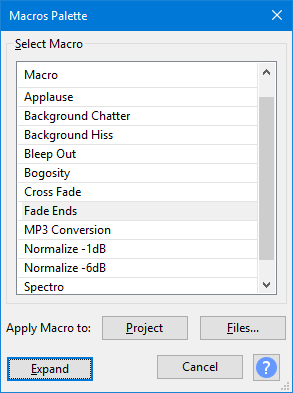
Click in the Track Control Panel of the first track you want to join to the topmost track.
Shortcut Z or Edit > Find Zero Crossings.
Shortcut Z or Select > Region > Ends to Zero Crossings.
Click after the end of the topmost track.
Press End on the keyboard.
Click Edit > Paste and the cut track will attach to the end of the topmost track.
Repeat as necessary to join all the tracks onto the topmost track.
Ctrl + A to select all the files.
File > Mass Rename.
In the "Mass Rename Wizard", click in "Target name template" and type the letter e with a $ after the letter. For example, e$0001.au will rename the files to e0001.au, e0002.au and so on. Use enough zeros in the file name so that all the .au files will have the same number of digits.
Press "Preview", and if the preview looks correct, hit "Rename"
On Mac, try Applications > Automator.
On Linux, try the file manager Thunar included in the xfce desktop See here for help running Thunar on the Ubuntu desktop.
If any of the project data has been edited, it is unlikely to recover correctly.
Concatenate the raw files together to make one long raw file. Concatenating the AU files together (each with its own header) would produce noise at the joins between each AU file.
cat *.raw > bigfile.raw
Finally, import the raw file into Audacity specifying the appropriate encoding, endianness, channels and sample rate.
Do not close or save the project if the automatic crash recovery fails to properly recover your project.
If you need to shut down the computer before manually fixing an incorrect Automatic Crash Recovery, force quit Audacity in the system task manager. This will preserve the temporary data for next launch of Audacity.
If you had successfully saved the project just before the crash, it may be simpler to discard the unsaved project in the Automatic Crash Recovery dialog then open the saved AUP file.
Tip: In order to see the default location of the Audacity temp folder on Windows or Mac you need to show hidden files and folders or type the folder location into your file manager's address bar.
All these utilities require the .au files to be input in consecutive alphanumerical order. Audacity names files randomly so files will need to renamed.
defaults write com.apple.finder AppleShowAllFiles TRUE
killall Finder(shows up in the outline)
(also shows up in the outline)
(does not show up in the outline)
Headings can be used anywhere, including inside other blocks.
Bold,
Italics,
Code,
Strikethrough,
Link,
internal link,
anchor link,
page link: Style Guide,
page anchor link: Inline text formatting options,
colored text,
colored background,
both colored,
LaTeX: f(x)=x∗e2piiξx
These can be used anywhere.
Unordered
List
Ordered
List
List with
sub-items
can have
...
Lists can be used anywhere, including inside other blocks. They can only include inline content and other (nested) lists.
Infoboxes:
A quote block
These blocks can be used inside of Tabs. The code block can also be used in Expandables, but cannot have other blocks inside it. The quote block and infobox can have headings, inline content and lists inside it.
Inline image:
Image block:
Attached file:
Embeds cannot be used inside of other blocks except the Tabs block, nor can other blocks be placed inside them.
text
Tables cannot be used inside other blocks except the Tabs block, nor can other blocks be placed inside them. Inline content works inside of text columns only.
Cards and tables can be converted into each other.
content of first tab
content of second tab
content of third tab
Tabs cannot be used inside other blocks. Tabs can have most other blocks inside them, except of other tabs, expandables, and API blocks.
Expandables cannot be inside other blocks. Expandables can have headings, lists, code blocks, and inline content inside them.
A Gitbook-specific drawing thing, generating SVGs. Likely useless when using Markdown.
Cannot be placed inside of other blocks except the Tabs block. That said, an inline variant is available which can go pretty much anywhere.
GET https://example.com/example
shows itself up in the outline. Example of all available parameters follows:
id
String
Description
id*
String
Description
id
String
Description
id
String
Description
id
String
Description
{
// good Response
}{
// not found Response
}{
// error Response
}Cannot be used inside other blocks. Can only contain plain text. Unfortunately very tailored towards web APIs only.
The above line is a divider.
// a code blockcode blocks <b style="some_css: 23px;" class="and other things"> also supports syntax highlighting</b>Hint
Caution
Danger
Success
Any table but the most simple option will be converted into HTML, rather than markdown when edited through gitbook.

Manage Macros allows you to edit, remove or rename existing Macros or add a new Macro. It also allows you to apply Macros to you project or a set of files.
Any , , , , or (Mac) effect shown in the can be added to a Macro. You can also add plugins in any format that are shown in the or Menus (including analysis effects), the built-in analyzer and a number of export commands.
Macros may be applied to either the entirety of the current project or to a selection of files using the Tools > command.
It is possible to use in Macros but see for how the Noise Profile is captured.
You can access the Manage Macros
The menu Tools > Manage Macros, or
The Expand button in the Macros Palette dialog.
Select Macro contains a list of already defined Macros. You can define the name of a new Macro and select which Macro is active.
The left hand box in the dialog (labeled Select Macro) contains a list of already defined Macros. Until you add a new Macro, it only has built-in MP3 Conversion and Fade Ends Macros.
Use left-click (or use the Up or Down keyboard arrows) to select the Macro you want to work on
New: Adds a new Macro to the list.
Remove: Remove the selected Macro from the list - grayed out when the Macros that ship as part of Audacity are selected.
Rename...: Rename the selected Macro - grayed out when the Macros that ship as part of Audacity are selected.
Restore: Resets any Audacity provided Macro to its default settings - grayed out when user-provided Macros are selected.
Import...: Enables you to import a Macro from a TXT file.
Export: Exports the selected Macro to a TXT file.
Edit Steps lists the sequence of commands in order of first to last (End) for the Macro selected in the Select Macro box to left.
The Macro can include a number of common Audacity functions and effects to be executed in any order you specify.
To create an audio file as part of the Macro process you must include an "Export" command (such as Export as WAV).
The Export command will use the settings you used the last time you used the same command from the File > Export > Export... menu command, or default settings if you have never used that command from the menu.
In many cases the parameters for each command in the Macro can be specified within the Manage Macros dialog.
You can:
Add or remove commands for the selected Macro
Change the order in which the commands execute in the Macro
Edit the parameters for some effects in the Macro
Insert: Insert a new command into the list
Edit...: Edit the parameters of the currently selected command
Delete: Delete the currently selected command in the list
Move Up: Move the currently selected command up in the list
Move Down: Move the currently selected command down in the list
Save: This button is only active when you have made edits to a Macro. It enables you to save those changes.
A few commands are intentionally omitted from the Macro Manager (such as Close:) because they are unsuitable for use in Macros.
To insert a new command in a Macro, left-click or use the Up or Down keyboard arrow to select an existing command and then press Insert. The new command will be placed above this selected command.
The Select Command dialog appears, listing all the available commands. Double-click a command from the list to insert it in the "Command" box, as shown in the image below after inserting "Normalize".
Alternatively, use the Up or Down keyboard arrow to select the command, then press Space.
The full list of all commands, with descriptions, is available at Scripting Reference.
Some scriptable commands are particularly useful for Macros. See these pages for details:
Extra Menu: Scriptables I - most commonly useful scriptables.
Extra Menu: Scriptables II - less commonly useful scriptables, but also including Select and Set Track, which combine functionality of several scriptables.
If the command has editable parameters, the Edit Parameters button will be active. Clicking this button will bring up the dialog box for the effect where you can set the parameters as if you were applying the standalone effect.
If you have previously created for an effect you can use the Use Preset to select one for use with that effect in the Macro.
Choose OK in the effect dialog to accept the parameters you entered, or Cancel to revert to the default parameters.
Choose OK in the Select Command dialog to add the command to the Macro.
Also note carefully that settings used in Macros will not affect or change the last-used parameter settings for any effect when next run manually.
This example shows the Set Track Status command.
The tick boxes on the left determines whether a feature should be used. When not selected, that feature does nothing.
The second tick box determines whether the feature is set to "on" or "off".
This shows:
The track name will not be changed
Track selectedness will be set to Not Selected
Track focus will be set to Focused
Commands that call Effects, Generators, Analyzers or Tools, use the same familiar graphical interface (GUI) as appears when they are used from the normal top level menus.
Many of the other commands provide a simple GUI comprised of checkboxes and text entry boxes. Typical examples can be seen in the Scriptables I and Scriptables II menus.
Macros will work on pre-existing selections you make in your project prior to running the Macro. But the selection can be over-ridden by your Macro itself as there are Macro commands available to effect selections in the audio.
In particular All(Select All) will select the entire project
Select which is parameterizable (see the provided Fade Ends Macro for an example where the first and last one seconds of the audio are selected for the fades).
When applying a Macro to files there is no pre-existing selection so you will need to create a selection in the Macro if your Macro requires audio to be selected to act on (and most Macros do).
There are four basic export commands available: Export as WAV, Export as MP3, Export as FLAC and Export as Ogg.
See Macros Palette for details of naming and location of exported files.
There is also a special Export command Export2 which enables you to export to a specific target file and format. When using Export2 you have to give the full file name (including path and filename extension).
Note carefully that the filename is not dynamically changeable when running the Macro, once set in the Export2 parameters, so you may wish to create several Macros the Export2 each targeting different file locations, names and filetype.
Example:
"C:\Users\<username>\Desktop\my file.flac" (this works)
Not: C:\Users\<username>\Desktop\my file.flac (the file name is not quoted)
Not: "my file.flac" (no path given)
Not: "C:\Users\<username>\Desktop\myfile" (no file extension)
The quote marks around the file pathing are supplied by Audacity once the Export2 command has been edited in setting up or editing the Macro
When entering the pathing data in the edit parameters dialog for the command you do not put the quote marks for example: C:\Users\<username>\Desktop\my file.flac
The following two commands are now deprecated and may well be removed in future versions of Audacity. They were part of "CleanSpeech" (which has long been removed from Audacity).
The Export as MP3 56k before and Export as MP3 56k after commands can be used respectively to export "before" and "after" MP3 files at 56 kbps bit rate at any point in the Macro processing. This allows you to compare the result of one or more effects, or provide files for different purposes with and without a particular effect.
Comments be added to Macros to enable you to document what is happening in the Macro.
Add a comment to your macro using the Comment command and edit its parameters to type the text of your comment.
Use the Shrink button to show a reduced Macros Palette dialog with a simple list of the existing Macros, enabling you to apply the Macros but not edit them.
This smaller version is useful for presets. It stays open after applying a macro, so it is a palette of custom functions, and you can pick another and apply that.
Using the Expand button on this reduced dialog will return you to the full Manage Macros dialog.
For more details see the Macros Palette page.
Apply Macro to enables you to make a Macro operate on either your current open Project or a set of selected external Files.
See Macros Palette for details of how these two buttons operate.
To dismiss the dialog simply click on the Close button.
If there any unsaved changes you will be asked if you want to save them or not.
See the Macros Examples page for examples of using Macros.
This error may sometimes occur for one or more commands in a Macro when updating from a previous Audacity version. The error may also occur if users sharing Macro have different Audacity versions or different versions of the plugins used in the Macro. The error will occur if:
any command in the Macro uses a different text format than that recognized by the version of Audacity in use
any plugins listed in the Macro are missing, in an incorrect location or are incompatible with the version of Audacity in use.
To resolve these errors, ensure you have compatible versions of all required plugins and that the plugins are installed correctly. If necessary, use the Manage Macros dialog to delete the command that fails then insert a replacement command for the same effect from the Select Command dialog.
The full list of all Macro commands, with descriptions, is available at Scripting Reference.
You can also edit an existing command by double-clicking it, or using the Up or Down keyboard arrow to select it and then pressing Space. The parameter settings dialog for that command will be displayed.
It is strongly recommended that you set parameters for the commands that you use in a Macro. Otherwise Audacity will use the last-used parameter setting(s) when you ran the effect(s) manually.
If you want to select all tracks, maintaining your current time selection, use "Select: First=0 Last=100". It will not waste time twiddling its thumbs on the tracks that are not there.
Parameters for export formats cannot be set in Manage Macros. To configure export parameters for the Macro, click File > Export > Export Audio... to access the Export Audio Dialog, click Options, set the parameters, press OK then Cancel the export. An audio track must be on screen in order to open the Export Audio Dialog.
The name of the MP3 exported by the "Export as MP3 56k before" command is prefixed by "MasterBefore_" followed by the date and time. The name of the MP3 exported by the "Export as MP3 56k after" command is prefixed by "MasterAfter_" followed by the date and time.
It is recommended not to process more than 500 files at a time
text
text
Card 3 top. With inline formatting.
Card 3 mid
Card 3 bottom
Card 1 top. Card has an image on top.
Card 1 mid
Card 1 bottom
Card 2 top. Entire card links to a page.
Card 2 mid
Card 2 bottom





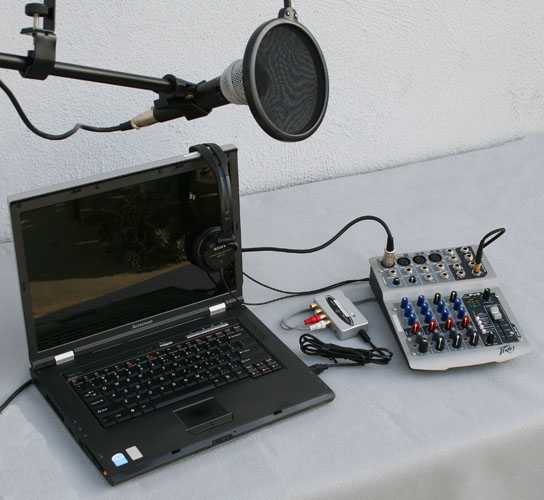
This page is an introduction tutorial to editing in Audacity. It covers how to import files, making cuts, rearranging clips, and applying effects!
To start editing, you need some sort of sound to edit. You can either record some sound, or import an existing sound file (for example, an MP3 or WAV) by dragging & dropping it into the project window. You can also import files via the File > Import menus.
Note: To import proprietary file formats such as M4A or WMA, you need to first.
Once you have that, you will see a waveform of your sound:
This waveform is a visual representation of the song. The larger the blue "blob" is, the louder the section. Lines standing alone ("spikes") indicate sudden and short loud sections such as clicks, snaps, claps and drum hits. With a bit of practice, you can use the waveform to quickly find your way around an audio file.
To remove a section of an audio file, first select the section by clicking and dragging in the waveform.
Hint: You can zoom in using the Zoom+ icon, or by Ctrl+Scroll (Cmd+Scroll) to precisely adjust the beginning and end of the selection.
Once you have a selection, press Delete or Backspace to delete it.
Audacity supports clips, which are pieces of audio inside the project which can be moved independently. Technically, any audio you record or import already exists as a clip, denoted by the rounded clip handle bars above the waveform.
You can click + drag on the clip handle bar to move a clip around.
To split a clip into two independent clips,
Click into the waveform where you want to split the clip.
Tip: To make precise adjustments, zoom in first.
Right-click > Split Clip (Ctrl+I / Cmd+I)
To trim a clip, hover with your cursor around the upper third of the left or right edge of a clip:
Then click and drag the edge to trim the clip to it's desired length.
Audacity supports a wide range of effects and effect plugins. These effects can be used for and more, and while each effect does different things, they all generally can be applied in the following way:
Select the audio you want to apply the effect to.
Go to the Effect menu.
Select the effect you want to use. Typically, a window like this will open:
Tweak the effect to your liking. You can click the Preview button to hear a short sample before applying it to the whole selection.
Press OK to apply the effect.
Note: If you select some audio instead, it will create a clip out of the selection.
Note: Trimming is a non-destructive operation. You can un-trim a clip at any time. If you have created your clip by a larger clip, you can even un-trim the current clip until it's at the length of the old clip. If you want to permanently remove the trimmed data, you can copy the clip to another project, choose Selected audio only when pasting, and move it back.
Best practice: If you want to apply an effect to an entire track, use instead. By doing so, you can change the effect at any point later on.


This page lists all commands in the Audacity menus and all pre-defined keyboard shortcuts.
The default Standard set of shortcuts is a reduced set, compared to earlier versions of Audacity, to simplify the set of shortcuts somewhat and to provide greater flexibility for users who wish to create their own shortcuts. There is also an extended Full set of keyboard shortcuts that can be selected from the Defaults button on the Keyboard Preferences dialog. This Full set is the set that was available in Audacity 2.1.3 and earlier. You can use Keyboard Preferences to change or remove existing shortcuts or to assign a shortcut to commands that lack a default shortcut.
Standard shortcuts are shown like so: Ctrl + A.
Shortcuts that are only in the Full set are shown like so: Ctrl + # Extra.
Shortcuts that have not been assigned, that you can assign using keyboard preferences, are shown like so (unassigned).
Some less commonly used commands are not in the default menus but they can be accessed by menu by enabling Show extra menus in Interface Preferences
Other Tips and hints:
Mac users: Ctrl = ⌘ and Alt = Option. So, for example, Ctrl + Alt + K = ⌘ + Option + K.
See Audacity Selection for examples of changing track focus and selection.
PAGE UP scrolls the project rightwards and PAGE DOWN scrolls the project leftwards, equivalent to a single click in the white area either side of the horizontal scrollbar. These shortcuts cannot be configured in Keyboard Preferences.
The File Menu provides commands for creating, opening and saving Audacity projects and importing and exporting audio files
Lists the full path to the twelve most recently saved or opened projects or most recently imported audio files
Various ways to save a project.
For exporting audio files
For importing audio files or label files into your project
The Edit Menu provides standard edit commands (Undo, Redo, Cut, Copy, Paste and Delete) plus many other commands specific to editing audio or labels
For more "advanced" removal of audio
Create or remove separate clips in the audio track. A clip inside an audio track is a separate section of that track which has been split so that it can be manipulated somewhat independently of the other clips in the track.
These commands are to add and edit labels.
Labeled Audio commands apply standard Edit Menu commands to the audio of one or more regions that are labeled. The labels themselves are not affected.
Select Menu has commands that enable you make selections of tracks or parts of the tracks in your project.
Tracks
For modifying, saving and restoring a selection.
For making a selection of a frequency range.
For modifying a selection, taking account of clips.
View Menu has commands that determine the amount of detail you see in all the tracks in the project window. It also lets you show or hide Toolbars and some additional windows such as Undo History.
Zoom in/out on the horizontal axis. Show more detail or show a longer length of time.
Controls the sizes of tracks.
Move forward/backwards through the audio
Toolbars can be used to determine which of the Audacity toolbars are displayed. By default all toolbars are shown except Spectral Selection and Scrub
Transport Menu commands let you play or stop, loop play, scrub play or record (including timed and sound activated recordings).
These commands control playback in Audacity. You can Start, Stop or Pause playback of the audio in your project.
These commands control recording in Audacity. You can Start, Stop or Pause recording in your project. You can either start a recording on your existing track or an a new track.
Scrubbing is the action of moving the mouse pointer right or left so as to adjust the position, speed or direction of playback, listening to the audio at the same time - a convenient way to quickly navigate the waveform to find a particular event of interest. Speed changes are made by rotating the mouse wheel while scrubbing.
These commands let you move the cursor to the start or end of the selection, track or any adjacent Clip that you may have
This submenu lets you manage and set various options for transport (playing and recording) in Audacity
Tracks Menu provides commands for creating and removing tracks, applying operations to selected tracks such as mixing, resampling or converting from stereo to mono, and lets you add or edit labels.
Adds a new track
Mixes down selected tracks to mono or stereo tracks
Mutes or unmutes audio tracks in the project
Pans left right or center audio tracks in the project
Commands that provide an automatic way of aligning selected tracks with the cursor, the selection, or with the start of the project.
Sorts all tracks in the project from top to bottom in the project window, by Start Time or by Name.
Generate Menu lets you create audio containing tones, noise or silence.
Audacity includes many built-in effects and also lets you use a wide range of plugin effects.
The Analyze Menu contains tools for finding out about the characteristics of your audio, or labeling key feature.
The Tools Menu contains customisable tools.
Displays a menu with list of all your Macros. Selecting any of these Macros by clicking on it will cause that Macro to be applied to the current project.
The Extra menu provides access to additional Commands that are not available in the normal default Audacity menus.
Extra commands related to play and record
Extra commands to select the tool, for example time-shift, envelopes, multi-tool.
Extra commands related to volume
Extra commands related to editing
Extra commands related to play at speed
Extra commands related to seeking
Extra commands related to selecting a device
Extra commands related to selecting.
Extra commands to set focus, usually focus on one track
Extra commands to move the cursor
Extra commands to operate on a track that has focus
These commands were originally written for scripting Audacity, e.g via a Python script that uses mod-script-pipe. The commands though are also present in the menu, available from macros, and available from within Nyquist using (AUD-DO "command")
Like Scriptables I, but these ones are less commonly used from the menu.
The Help Menu lets you find out more about the Audacity application and how to use it. It also includes some diagnostic tools.
A set of diagnostic tools
These are commands which do not appear in any menu.
There are a number of key combinations that can be used in combination with mouse clicks. These cannot be configured. They are listed on Mouse Preferences
Recent Files
(unassigned)
Lists the full path to the twelve most recently saved or opened projects or most recently imported audio files
Close
Ctrl+W
Closes the current project window, prompting you to save your work if you have not saved.
Save Project
(unassigned)
Various ways to save a project.
Compact Project
Shift+A
Compacts your project, saving disk space. Using this command will delete your Undo/Redo History and your Audacity clipboard contents.
Export
(unassigned)
For exporting audio files
Import
(unassigned)
For importing audio files or label files into your project
Page Setup...
(unassigned)
Opens the standard Page Setup dialog box prior to printing
Print...
(unassigned)
Prints all the waveforms in the current project window (and the contents of Label Tracks or other tracks), with the Timeline above. Everything is printed to one page.
Exit
Ctrl+Q
Closes all project windows and exits Audacity. If there are any unsaved changes to your project, Audacity will ask if you want to save them.
Backup Project...
(unassigned)
Saves a backup copy of your project in .AUP3 format to a different name or location
Export as OGG
(unassigned)
Exports to an OGG file
Export Audio...
Ctrl+Shift+E
Exports to an audio file.
Export Selected Audio...
(unassigned)
Exports selected audio to a file.
Export Labels...
(unassigned)
Exports audio at one or more labels to file(s).
Export Multiple...
Ctrl+Shift+L
Exports multiple audio files in one process, one file for each track if there are multiple audio tracks, or labels can be added which then define the length of each exported file.
Export MIDI...
(unassigned)
Exports MIDI (note tracks) to a MIDI file.
MIDI...
(unassigned)
Imports a MIDI (MIDI or MID extension) or Allegro (GRO) file to a Note Track where simple cut-and-paste edits can be performed. The result can be exported with the File > Export> > Export MIDI command. Note: Currently, MIDI and Allegro files cannot be played.
Raw Data...
(unassigned)
Attempts to import an uncompressed audio file that might be "raw" data without any headers to define its format, might have incorrect headers or be otherwise partially corrupted, or might be in a format that Audacity is unable to recognize. Raw data in textual format cannot be imported.
Cut
Ctrl+X
Removes the selected audio data and/or labels and places these on the Audacity clipboard. By default, any audio or labels to right of the selection are shifted to the left.
Delete
Ctrl+K
Removes the selected audio data and/or labels without copying these to the Audacity clipboard. By default, any audio or labels to right of the selection are shifted to the left.
Copy
Ctrl+C
Copies the selected audio data to the Audacity clipboard without removing it from the project.
Paste
Ctrl+V
Inserts whatever is on the Audacity clipboard at the position of the selection cursor in the project, replacing whatever audio data is currently selected, if any.
Duplicate
Ctrl+D
Creates a new track containing only the current selection as a new clip.
Remove Special
(unassigned)
For more "advanced" removal of audio
Clip Boundaries
(unassigned)
Create or remove separate clips in the audio track. A clip inside an audio track is a separate section of that track which has been split so that it can be manipulated somewhat independently of the other clips in the track.
Labels
(unassigned)
These commands are to add and edit labels.
Labeled Audio
(unassigned)
Labeled Audio commands apply standard Edit Menu commands to the audio of one or more regions that are labeled. The labels themselves are not affected.
Metadata...
(unassigned)
The Metadata Editor modifies information about a track, such as the artist and genre. Typically used with MP3 files.
Preferences...
Ctrl+P
Preferences let you change most of the default behaviors and settings of Audacity. On Mac, Preferences are in the Audacity Menu and the default shortcut is ⌘ + ,.
Silence Audio
Ctrl+L
Replaces the currently selected audio with absolute silence. Does not affect label tracks.
Trim Audio
Ctrl+T
Deletes all audio but the selection. If there are other separate clips in the same track these are not removed or shifted unless trimming the entire length of a clip or clips. Does not affect label tracks.
Join
Ctrl+J Extra
If you select an area that overlaps one or more clips, they are all joined into one large clip. Regions in-between clips become silence.
Detach at Silences
Ctrl+Alt+J Extra
In a selection region that includes absolute silences, creates individual non-silent clips between the regions of silence. The silence becomes blank space between the clips.
Add Label at Playback Position
Ctrl+M (⌘ + . on Mac)
Creates a new, empty label at the current playback or recording position.
Paste Text to New Label
Ctrl+Alt+V Extra
Pastes the text on the Audacity clipboard at the cursor position in the currently selected label track. If there is no selection in the label track a point label is created. If a region is selected in the label track a region label is created. If no label track is selected one is created, and a new label is created.
Type to Create a Label (on/off)
(unassigned)
When a label track has the yellow focus border, if this option is on, just type to create a label. Otherwise you must create a label first.
Split Cut
Alt+Shift+X
Same as the Split Cut command, but operates on labeled audio regions.
Split Delete
Alt+Shift+K
Same as the Split Delete command, but operates on labeled audio regions.
Silence Audio
Alt+L Extra
Same as the Silence Audio command, but operates on labeled audio regions.
Copy
Alt+Shift+C
Same as the Copy command, but operates on labeled audio regions.
Split
Alt+I Extra
Same as the Split command, but operates on labeled audio regions or points.
Join
Alt+J Extra
Same as the Join command, but operates on labeled audio regions or points. You may need to select the audio and use Edit > Clip Boundaries > Join, to join all regions or points.
Detach at Silences
Alt+Shift+J
Same as the Detach at Silences command, but operates on labeled audio regions.
Tracks
(unassigned)
Tracks
Region
(unassigned)
For modifying, saving and restoring a selection.
Spectral
(unassigned)
For making a selection of a frequency range.
Clip Boundaries
(unassigned)
For modifying a selection, taking account of clips.
Cursor to Stored Cursor Position
(unassigned)
Selects from the position of the cursor to the previously stored cursor position
Store Cursor Position
(unassigned)
Stores the current cursor position for use in a later selection
At Zero Crossings
Z
Moves the edges of a selection region (or the cursor position) slightly so they are at a rising zero crossing point.
Track Start to Cursor
Shift+J
Selects a region in the selected track(s) from the start of the track to the cursor position.
Cursor to Track End
Shift+K
Selects a region in the selected track(s) from the cursor position to the end of the track.
Track Start to End
(unassigned)
Selects a region in the selected track(s) from the start of the track to the end of the track.
Store Selection
(unassigned)
Stores the end points of a selection for later reuse.
Retrieve Selection
(unassigned)
Retrieves the end points of a previously stored selection.
Next Lower Peak Frequency
(unassigned)
When in Spectrogram views snaps the center frequency to the next lower frequency peak, moving the spectral selection downwards.
Previous Clip on selected track
Alt+,
Moves the selection to the previous clip.
Next Clip on selected Track
Alt+.
Moves the selection to the next clip.
Previous Clip on focused Track
Shift+Tab (not in menu - cannot be reassigned)
Moves the selection to the previous clip.
Next Clip on focused Track
Tab (not in menu - cannot be reassigned)
Moves the selection to the next clip.
Skip to
(unassigned)
Move forward/backwards through the audio
History...
(unassigned)
Brings up the History window which can then be left open while using Audacity normally. History lists all undoable actions performed in the current project, including importing.
Karaoke...
(unassigned)
Brings up the Karaoke window, which displays the labels in a "bouncing ball" scrolling display
Mixer Board...
(unassigned)
Mixer Board is an alternative view to the audio tracks in the main tracks window. Analogous to a hardware mixer board, each audio track is displayed in a Track Strip.
Toolbars
(unassigned)
Toolbars can be used to determine which of the Audacity toolbars are displayed. By default all toolbars are shown except Spectral Selection and Scrub
Extra Menus (on/off)
(unassigned)
Shows extra menus with many extra less-used commands.
Show Clipping (on/off)
(unassigned)
Option to show or not show audio that is too loud (in red) on the wave form.
Zoom Out
Ctrl+3
Zooms out displaying less detail over a greater length of time.
Zoom to Selection
Ctrl+E
Zooms in or out so that the selected audio fills the width of the window.
Zoom Toggle
Shift+Z
Changes the zoom back and forth between two preset levels.
Advanced Vertical Zooming
(unassigned)
Enable for left-click gestures in the vertical scale to control zooming.
Collapse All Tracks
Ctrl+Shift+C
Collapses all tracks to take up the minimum amount of space.
Expand Collapsed Tracks
Ctrl+Shift+X
Expands all collapsed tracks to their original size before the last collapse.
Tools Toolbar
(unassigned)
Chooses various tools for selection, volume adjustment, zooming and time-shifting of audio
Recording Meter Toolbar
(unassigned)
Displays recording levels and toggles input monitoring when not recording
Playback Meter Toolbar
(unassigned)
Displays playback levels
Mixer Toolbar
(unassigned)
Adjusts the recording and playback volumes of the devices currently selected in Device Toolbar
Edit Toolbar
(unassigned)
Cut, copy, paste, trim audio, silence audio, undo, redo, zoom tools
Play-at-Speed Toolbar
(unassigned)
Plays audio at a slower or faster speed than normal, affecting pitch
Scrub Toolbar
(unassigned)
Controls playback and recording and skips to start or end of project when neither playing or recording
Device Toolbar
(unassigned)
Selects audio host, recording device, number of recording channels and playback device
Selection Toolbar
(unassigned)
Controls the sample rate of the project, snapping to the selection format and adjusts cursor and region position by keyboard input
Spectral Selection Toolbar
(unassigned)
Displays and lets you adjust the current spectral (frequency) selection without having to be in Spectrogram view
Scrubbing
(unassigned)
Scrubbing is the action of moving the mouse pointer right or left so as to adjust the position, speed or direction of playback, listening to the audio at the same time - a convenient way to quickly navigate the waveform to find a particular event of interest. Speed changes are made by rotating the mouse wheel while scrubbing.
Cursor to
(unassigned)
These commands let you move the cursor to the start or end of the selection, track or any adjacent Clip that you may have
(unassigned)
These commands enable you to control looping playback
Rescan Audio Devices
(unassigned)
Rescan for audio devices connected to your computer, and update the playback and recording dropdown menus in Device Toolbar
Transport Options
(unassigned)
This submenu lets you manage and set various options for transport (playing and recording) in Audacity
Play Once/Stop
Shift+Space
Plays the loop region only once when looping is enabled.
Pause
P
Temporarily pauses playing or recording without losing your place.
Timer Record...
Shift+T
Brings up the Timer Record dialog.
Punch and Roll Record
Shift+D
Re-record over audio, with a pre-roll of audio that comes before.
Pause
P
Temporarily pauses playing or recording without losing your place.
Scrub Ruler
(unassigned)
Shows (or hides) the scrub ruler, which is just below the timeline.
Track Start
J
Moves the cursor to the start of the selected track.
Track End
K
Moves the cursor to the end of the selected track.
Previous Clip Boundary
(unassigned)
Moves the cursor position back to the right-hand edge of the previous clip
Next Clip Boundary
(unassigned)
Moves the cursor position forward to the left-hand edge of the next clip
Project Start
Home
Moves the cursor to the beginning of the project.
Project End
End
Moves the cursor to the end of the project.
Set Loop to Selection
Shift+L
Sets the current selection range as the new looping region.
Set Loop In
(unassigned)
Sets the start of the looping region to the current selection.
Set Loop Out
(unassigned)
Sets the end of the looping region to the current selection.
Pinned Play/Record Head (on/off)
(unassigned)
You can change Audacity to play and record with a fixed head pinned to the Timeline. You can adjust the position of the fixed head by dragging it
Overdub (on/off)
(unassigned)
Toggles on and off the Overdub option.
Software Playthrough (on/off)
(unassigned)
Toggles on and off the Software Playthrough option.
Resample...
(unassigned)
Allows you to resample the selected track(s) to a new sample rate for use in the project
Remove Tracks
(unassigned)
Removes the selected track(s) from the project. Even if only part of a track is selected, the entire track is removed.
Mute/Unmute
(unassigned)
Mutes or unmutes audio tracks in the project
Pan
(unassigned)
Pans left right or center audio tracks in the project
Align Tracks
(unassigned)
Commands that provide an automatic way of aligning selected tracks with the cursor, the selection, or with the start of the project.
Sort Tracks
(unassigned)
Sorts all tracks in the project from top to bottom in the project window, by Start Time or by Name.
Sync-Lock Tracks (on/off)
(unassigned)
Ensures that length changes occurring anywhere in a defined group of tracks also take place in all audio or label tracks in that group.
Label Track
(unassigned)
Adds an empty label track to the project
Time Track
(unassigned)
Adds an empty time track to the project. Time tracks are used to speed up and slow down audio.
Mix and Render to New Track
Ctrl+Shift+M Extra
Same as Tracks > Mix and Render except that the original tracks are preserved rather than being replaced by the resulting "Mix" track.
Mute Tracks
Ctrl+Alt+U
Mutes the selected tracks.
Unmute Tracks
Ctrl+Alt+Shift+U
Unmutes the selected tracks.
Center
(unassigned)
Pan selected audio to right speaker.
Start to Zero
(unassigned)
Aligns the start of selected tracks with the start of the project.
Start to Cursor/Selection Start
(unassigned)
Aligns the start of selected tracks with the current cursor position or with the start of the current selection.
Start to Selection End
(unassigned)
Aligns the start of selected tracks with the end of the current selection.
End to Cursor/Selection Start
(unassigned)
Aligns the end of selected tracks with the current cursor position or with the start of the current selection.
End to Selection End
(unassigned)
Aligns the end of selected tracks with the end of the current selection.
Move Selection with Tracks (on/off)
(unassigned)
Toggles on/off the selection moving with the realigned tracks, or staying put.
Nyquist
(unassigned)
Shows the list of available Nyquist effects but only if the user has effects "Grouped by Type" in Effects Preferences.
Noise...
(unassigned)
Generates 'white', 'pink' or 'brown' noise.
Silence...
(unassigned)
Creates audio of zero amplitude, the only configurable setting being duration.
Tone...
(unassigned)
Generates one of four different tone waveforms: Sine, Square, Sawtooth or Square (no alias), and a frequency between 1 Hz and half the current project rate.
Risset Drum...
(unassigned)
Produces a realistic drum sound.
Repeat Last Effect
Ctrl+R
Repeats the last used effect at its last used settings and without displaying any dialog.
Built-in
(unassigned)
no tip string.
LADSPA
(unassigned)
Shows the list of available LADSPA effects but only if the user has effects "Grouped by Type" in Effects Preferences.
Nyquist
(unassigned)
no tip string.
Bass and Treble...
(unassigned)
Increases or decreases the lower frequencies and higher frequencies of your audio independently; behaves just like the bass and treble controls on a stereo system.
Change Pitch...
(unassigned)
Change the pitch of a selection without changing its tempo.
Change Speed...
(unassigned)
Change the speed of a selection, also changing its pitch.
Change Tempo...
(unassigned)
Change the tempo and length (duration) of a selection without changing its pitch.
Click Removal...
(unassigned)
Click Removal is designed to remove clicks on audio tracks and is especially suited to declicking recordings made from vinyl records.
Compressor...
(unassigned)
Compresses the dynamic range by two alternative methods. The default "RMS" method makes the louder parts softer, but leaves the quieter audio alone. The alternative "peaks" method makes the entire audio louder, but amplifies the louder parts less than the quieter parts. Make-up gain can be applied to either method, making the result as loud as possible without clipping, but not changing the dynamic range further.
Distortion...
(unassigned)
Use the Distortion effect to make the audio sound distorted. By distorting the waveform the frequency content is changed, which will often make the sound "crunchy" or "abrasive". Technically this effect is a . The result of waveshaping is equivalent to applying non-linear amplification to the audio waveform. Preset shaping functions are provided, each of which produces a different type of distortion.
Echo...
(unassigned)
Repeats the selected audio again and again, normally softer each time and normally not blended into the original sound until some time after it starts. The delay time between each repeat is fixed, with no pause in between each repeat. For a more configurable echo effect with a variable delay time and pitch-changed echoes, see Delay.
Fade In
(unassigned)
Applies a linear fade-in to the selected audio - the rapidity of the fade-in depends entirely on the length of the selection it is applied to. For a more customizable logarithmic fade, use the Envelope Tool on the Tools Toolbar.
Fade Out
(unassigned)
Applies a linear fade-out to the selected audio - the rapidity of the fade-out depends entirely on the length of the selection it is applied to. For a more customizable logarithmic fade, use the Envelope Tool on the Tools Toolbar.
Filter Curve...
(unassigned)
Adjusts the volume levels of particular frequencies
Graphic EQ...
(unassigned)
Adjusts the volume levels of particular frequencies
Invert
(unassigned)
This effect flips the audio samples upside-down. This normally does not affect the sound of the audio at all. It is occasionally useful for vocal removal.
Loudness Normalization...
(unassigned)
Changes the perceived loudness of the audio.
Noise Reduction...
(unassigned)
This effect is ideal for reducing constant background noise such as fans, tape noise, or hums. It will not work very well for removing talking or music in the background. More details here.
Normalize...
(unassigned)
Use the Normalize effect to set the maximum amplitude of a track, equalize the amplitudes of the left and right channels of a stereo track and optionally remove any DC offset from the track
Paulstretch...
(unassigned)
Use Paulstretch only for an extreme time-stretch or "stasis" effect, This may be useful for synthesizer pad sounds, identifying performance glitches or just creating interesting aural textures. Use Change Tempo or Sliding Time Scale rather than Paulstretch for tasks like slowing down a song to a "practice" tempo.
Phaser...
(unassigned)
The name "Phaser" comes from "Phase Shifter", because it works by combining phase-shifted signals with the original signal. The movement of the phase-shifted signals is controlled using a Low Frequency Oscillator (LFO).
Repair
(unassigned)
Fix one particular short click, pop or other glitch no more than 128 samples long.
Repeat...
(unassigned)
Repeats the selection the specified number of times.
Reverb...
(unassigned)
A configurable stereo reverberation effect with built-in and user-added presets. It can be used to add ambience (an impression of the space in which a sound occurs) to a mono sound. Also use it to increase reverberation in stereo audio that sounds too "dry" or "close".
Reverse
(unassigned)
Reverses the selected audio; after the effect the end of the audio will be heard first and the beginning last.
Sliding Stretch...
(unassigned)
This effect allows you to make a continuous change to the tempo and/or pitch of a selection by choosing initial and/or final change values.
Truncate Silence...
(unassigned)
Automatically try to find and eliminate audible silences. Do not use this with faded audio.
Wahwah...
(unassigned)
Rapid tone quality variations, like that guitar sound so popular in the 1970's.
Crossfade Clips
(unassigned)
Use Crossfade Clips to apply a simple crossfade to a selected pair of clips in a single audio track.
Crossfade Tracks...
(unassigned)
Use Crossfade Tracks to make a smooth transition between two overlapping tracks one above the other. Place the track to be faded out above the track to be faded in then select the overlapping region in both tracks and apply the effect.
Delay...
(unassigned)
A configurable delay effect with variable delay time and pitch shifting of the delays.
High-Pass Filter...
(unassigned)
Passes frequencies above its cutoff frequency and attenuates frequencies below its cutoff frequency.
Limiter...
(unassigned)
Limiter passes signals below a specified input level unaffected or gently reduced, while preventing the peaks of stronger signals from exceeding this threshold. Mastering engineers often use this type of dynamic range compression combined with make-up gain to increase the perceived loudness of an audio recording during the audio mastering process.
Low-Pass Filter...
(unassigned)
Passes frequencies below its cutoff frequency and attenuates frequencies above its cutoff frequency.
Notch Filter...
(unassigned)
Greatly attenuate ("notch out"), a narrow frequency band. This is a good way to remove mains hum or a whistle confined to a specific frequency with minimal damage to the remainder of the audio.
Spectral edit multi tool
(unassigned)
When the selected track is in spectrogram or spectrogram log(f) view, applies a notch filter, high pass filter or low pass filter according to the spectral selection made. This effect can also be used to change the audio quality as an alternative to using Equalization.
Spectral edit parametric EQ...
(unassigned)
When the selected track is in spectrogram or spectrogram log(f) view and the spectral selection has a center frequency and an upper and lower boundary, performs the specified band cut or band boost. This can be used as an alternative to Equalization or may also be useful to repair damaged audio by reducing frequency spikes or boosting other frequencies to mask spikes.
Spectral edit shelves...
(unassigned)
When the selected track is in spectrogram or spectrogram log(f) view, applies either a low- or high-frequency shelving filter or both filters, according to the spectral selection made. This can be used as an alternative to Equalization or may also be useful to repair damaged audio by reducing frequency spikes or boosting other frequencies to mask spikes.
Studio Fade Out
(unassigned)
Applies a more musical fade out to the selected audio, giving a more pleasing sounding result.
Tremolo...
(unassigned)
Modulates the volume of the selection at the depth and rate selected in the dialog. The same as the tremolo effect familiar to guitar and keyboard players.
Vocal Reduction and Isolation...
(unassigned)
Attempts to remove or isolate center-panned audio from a stereo track. Most "Remove" options in this effect preserve the stereo image.
Vocoder...
(unassigned)
Synthesizes audio (usually a voice) in the left channel of a stereo track with a carrier wave (typically white noise) in the right channel to produce a modified version of the left channel. Vocoding a normal voice with white noise will produce a robot-like voice for special effects.
Plot Spectrum...
(unassigned)
Takes the selected audio (which is a set of sound pressure values at points in time) and converts it to a graph of frequencies against amplitudes.
Find Clipping...
(unassigned)
Displays runs of clipped samples in a Label Track, as a screen-reader accessible alternative to View > Show Clipping. A run must include at least one clipped sample, but may include unclipped samples too.
Nyquist
(unassigned)
no tip string.
Apply Macro
(unassigned)
Displays a menu with list of all your Macros. Selecting any of these Macros by clicking on it will cause that Macro to be applied to the current project.
Screenshot...
(unassigned)
A tool, mainly used in documentation, to capture screenshots of Audacity.
Run Benchmark...
(unassigned)
A tool for measuring the performance of one part of Audacity.
Nyquist Prompt...
(unassigned)
Brings up a dialog where you can enter Nyquist commands. Nyquist is a programming language for generating, processing and analyzing audio. For more information see .
Nyquist Plugin Installer...
(unassigned)
A Nyquist plugin that simplifies the installation of other Nyquist plugins.
Regular Interval Labels...
(unassigned)
Places labels in a long track so as to divide it into smaller, equally sized segments.
Sample Data Export...
(unassigned)
Reads the values of successive samples from the selected audio and prints this data to a plain text, CSV or HTML file.
Sample Data Import...
(unassigned)
Reads numeric values from a plain ASCII text file and creates a PCM sample for each numeric value read.
MP3 Conversion
(unassigned)
Converts MP3.
Mixer
(unassigned)
Extra commands related to volume
Edit
(unassigned)
Extra commands related to editing
Play-at-Speed
(unassigned)
Extra commands related to play at speed
Seek
(unassigned)
Extra commands related to seeking
Device
(unassigned)
Extra commands related to selecting a device
Selection
(unassigned)
Extra commands related to selecting.
Focus
(unassigned)
Extra commands to set focus, usually focus on one track
Cursor
(unassigned)
Extra commands to move the cursor
Track
(unassigned)
Extra commands to operate on a track that has focus
Scriptables I
(unassigned)
These commands were originally written for scripting Audacity, e.g via a Python script that uses mod-script-pipe. The commands though are also present in the menu, available from macros, and available from within Nyquist using (AUD-DO "command")
Scriptables II
(unassigned)
Like Scriptables I, but these ones are less commonly used from the menu.
Full Screen (on/off)
F11
Toggle full screen mode with no title bar
Play One Second
(unassigned)
Plays for one second centered on the current mouse pointer position (not from the current cursor position). See this page for an example.
Play to Selection
B
Plays to or from the current mouse pointer position to or from the start or end of the selection, depending on the pointer position. See this page for more details.
Play Before Selection Start
Shift+F5 Extra
Plays a short period before the start of the selected audio, the period before shares the setting of the cut preview.
Play After Selection Start
Shift+F6 Extra
Plays a short period after the start of the selected audio, the period after shares the setting of the cut preview.
Play Before Selection End
Shift+F7 Extra
Plays a short period before the end of the selected audio, the period before shares the setting of the cut preview.
Play After Selection End
Shift+F8 Extra
Plays a short period after the end of the selected audio, the period after shares the setting of the cut preview.
Play Before and After Selection Start
Ctrl+Shift+F5 Extra
Plays a short period before and after the start of the selected audio, the periods before and after share the setting of the cut preview.
Play Before and After Selection End
Ctrl+Shift+F7 Extra
Plays a short period before and after the end of the selected audio, the periods before and after share the setting of the cut preview.
Play Cut Preview
C
Plays audio excluding the selection
Draw Tool
F3
Chooses Draw tool.
Zoom Tool
F4
Chooses Zoom tool.
Multi Tool
F6
Chooses the Multi-Tool
Previous Tool
A Extra
Cycles backwards through the tools, starting from the currently selected tool: starting from Selection, it would navigate to Multi-tool to Time Shift to Zoom to Draw to Envelope to Selection.
Next Tool
D Extra
Cycles forwards through the tools, starting from the currently selected tool: starting from Selection, it would navigate to Envelope to Draw to Zoom to Time Shift to Multi-tool to Selection.
Decrease Playback Volume
(unassigned)
Each key press will decrease the playback volume by 0.1.
Adjust Recording Volume...
(unassigned)
Displays the Recording Volume dialog. You can type a new value for the recording volume (between 0 and 1), or press Tab, then use the left and right arrow keys to adjust the slider.
Increase Recording Volume
(unassigned)
Each key press will increase the recording volume by 0.1.
Decrease Recording Volume
(unassigned)
Each key press will decrease the recording volume by 0.1.
Time Shift Left
(unassigned)
Moves the currently focused audio track (or a separate clip in that track which contains the editing cursor or selection region) one screen pixel to left.
Time Shift Right
(unassigned)
Moves the currently focused audio track (or a separate clip in that track which contains the editing cursor or selection region) one screen pixel to right.
Play Cut Preview-at-Speed
(unassigned)
Combines cut preview and play at speed
Adjust Playback Speed...
(unassigned)
Displays the Playback Speed dialog. You can type a new value for the playback volume (between 0 and 1), or press Tab, then use the left and right arrow keys to adjust the slider.
Increase Playback Speed
(unassigned)
Each key press will increase the playback speed by 0.1.
Decrease Playback Speed
(unassigned)
Each key press will decrease the playback speed by 0.1.
Move to Previous Label
Alt+Left
Moves selection to the previous label
Move to Next Label
Alt+Right
Moves selection to the next label
Long Seek Left During Playback
Shift+Left
Skips the playback cursor back 15 seconds by default.
Long Seek Right During Playback
Shift+Right
Skips the playback cursor forward 15 seconds by default.
Change Audio Host...
Shift+H Extra
Displays the Select Audio Host dialog for choosing the particular interface with which Audacity communicates with your chosen playback and recording devices.
Change Recording Channels...
Shift+N Extra
Displays the Select Recording Channels dialog for choosing the number of channels to be recorded by the chosen recording device.
Snap-To Prior
(unassigned)
Equivalent to setting the Snap To control in Selection Toolbar to "Prior".
Selection to Start
Shift+Home
Select from cursor to start of project
Selection to End
Shift+End
Select from cursor to end of track
Selection Extend Left
Shift+Left
Increases the size of the selection by extending it to the left. The amount of increase is dependent on the zoom level. If there is no selection one is created starting at the cursor position.
Selection Extend Right
Shift+Right
Increases the size of the selection by extending it to the right. The amount of increase is dependent on the zoom level. If there is no selection one is created starting at the cursor position.
Set (or Extend) Left Selection
(unassigned)
Extend selection left a little. This command only works during Playback or Recording.
Set (or Extend) Right Selection
(unassigned)
Extend selection right a little. This command only works during Playback or Recording.
Selection Contract Left
Ctrl+Shift+Right
Decreases the size of the selection by contracting it from the right. The amount of decrease is dependent on the zoom level. If there is no selection no action is taken.
Selection Contract Right
Ctrl+Shift+Left
Decreases the size of the selection by contracting it from the left. The amount of decrease is dependent on the zoom level. If there is no selection no action is taken.
Move Focus to Previous Track
Up
Focus one track up
Move Focus to Next Track
Down
Focus one track down
Move Focus to First Track
Ctrl+Home Extra
Focus on first track
Move Focus to Last Track
Ctrl+End Extra
Focus on last track
Move Focus to Previous and Select
Shift+Up
Focus one track up and select it
Move Focus to Next and Select
Shift+Down
Focus one track down and select it
Toggle Focused Track
Return
Toggle selectedness of the track that has focus
Toggle Focused Track
NUMPAD_ENTER
Toggle selectedness of the track that has focus
Cursor Short Jump Left
,
When not playing audio, moves the editing cursor one second left by default. When playing audio, moves the playback cursor one second left by default. The default value can be changed by adjusting the "Short Period" under "Seek Time when playing" in Playback Preferences.
Cursor Short Jump Right
.
When not playing audio, moves the editing cursor one second right by default. When playing audio, moves the playback cursor one second right by default. The default value can be changed by adjusting the "Short Period" under "Seek Time when playing" in Playback Preferences.
Cursor Long Jump Left
Shift+,
When not playing audio, moves the editing cursor 15 seconds left by default. When playing audio, moves the playback cursor 15 seconds left by default. The default value can be changed by adjusting the "Long Period" under "Seek Time when playing" in Playback Preferences.
Cursor Long Jump Right
Shift+.
When not playing audio, moves the editing cursor 15 seconds right by default. When playing audio, moves the playback cursor 15 seconds right by default. The default value can be changed by adjusting the "Long Period" under "Seek Time when playing" in Playback Preferences.
Pan Right on Focused Track
Alt+Shift+Right Extra
Controls the pan slider on the focused track. Each keypress changes the pan value by 10% right.
Change Gain on Focused Track...
Shift+G
Brings up the Gain dialog for the focused track where you can enter a gain value, or use the slider for finer control of gain than is available when using the track pan slider.
Increase Gain on Focused Track
Alt+Shift+Up Extra
Controls the gain slider on the focused track. Each keypress increases the gain value by 1 dB.
Decrease Gain on Focused Track
Alt+Shift+Down Extra
Controls the gain slider on the focused track. Each keypress decreases the gain value by 1 dB.
Open Menu on Focused Track...
Shift+M
Opens the Audio Track Dropdown Menu on the focused audio track or other track type. In the audio track dropdown, use Up, and Down, arrow keys to navigate the menu and Enter, to select a menu item. Use Right, arrow to open the "Set Sample Format" and "Set Rate" choices or Left, arrow to leave those choices.
Mute/Unmute Focused Track
Shift+U
Toggles the Mute button on the focused track.
Solo/Unsolo Focused Track
Shift+S
Toggles the Solo button on the focused track.
Close Focused Track
Shift+C Extra
Close (remove) the focused track only.
Move Focused Track Up
(unassigned)
Moves the focused track up by one track and moves the focus there.
Move Focused Track Down
(unassigned)
Moves the focused track down by one track and moves the focus there.
Move Focused Track to Top
(unassigned)
Moves the focused track up to the top of the track table and moves the focus there.
Move Focused Track to Bottom
(unassigned)
Moves the focused track down to the bottom of the track table and moves the focus there.
Select Tracks...
(unassigned)
Modifies which tracks are selected. First and Last are track numbers. High and Low are for spectral selection. The Mode parameter allows complex selections, e.g adding or removing tracks from the current selection.
Set Track Status...
(unassigned)
Sets properties for a track or channel (or both).Name is used to set the name. It is not used in choosing the track.
Set Track Audio...
(unassigned)
Sets properties for a track or channel (or both). Can set pan, gain, mute and solo.
Set Track Visuals...
(unassigned)
Sets visual properties for a track or channel (or both). SpectralPrefs=1 sets the track to use general preferences, SpectralPrefs=1 per track prefs. When using general preferences, SetPreferences can be used to change a preference and so affect display of the track.
Get Preference...
(unassigned)
Gets a single preference setting.
Set Preference...
(unassigned)
Sets a single preference setting. Some settings such as them changes require a reload (use Reload=1), but this takes time and slows down a script.
Set Clip...
(unassigned)
Modify a clip by stating the track or channel a time within it. Color and start position can be set. Try to avoid overlapping clips, as Audacity will allow it, but does not like them.
Set Envelope...
(unassigned)
Modify an envelope by specifying a track or channel and a time within it. You cannot yet delete individual envelope points, but can delete the whole envelope using Delete=1.
Set Label...
(unassigned)
Modifies an existing label. You must give it the label number.
Set Project...
(unassigned)
Sets the project window to a particular location and size. Can also change the caption - but that is cosmetic and may be overwritten again later by Audacity.
Get Info...
(unassigned)
Gets information in a list in one of three formats.
Message...
(unassigned)
Used in testing. Sends the Text string back to you.
Help...
(unassigned)
This is an extract from GetInfo Commands, with just one command.
Import...
(unassigned)
Imports from a file. The automation command uses a text box to get the file name rather than a normal file-open dialog.
Export...
(unassigned)
Exports to a named file. This version of export has the full set of export options. However, a current limitation is that the detailed option settings are always stored to and taken from saved preferences. The net effect is that for a given format, the most recently used options for that format will be used.
Open Project...
(unassigned)
Opens a project.
Save Project...
(unassigned)
Saves a project.
Move Mouse...
(unassigned)
Experimental command (called Drag in scripting) that moves the mouse. An Id can be used to move the mouse into a button to get the hover effect. Window names can be used instead. If To is specified, the command does a drag, otherwise just a hover.
Compare Audio...
(unassigned)
Compares selected range on two tracks. Reports on the differences and similarities.
Screenshot (short format)...
(unassigned)
A version of Tools -> Screenshot with a more minimal GUI. One of the most useful options is All_Tracks. The _Plus suffix includes the timeline.
Diagnostics
(unassigned)
A set of diagnostic tools
Check for Updates...
(unassigned)
Checks online to see if this is the latest version of Audacity.
About Audacity...
(unassigned)
Brings a dialog with information about Audacity, such as who wrote it, what features are enabled and the GNU GPL v2 license.
Show Log...
(unassigned)
Launches the "Audacity Log" window, the log is largely a debugging aid, having timestamps for each entry
Generate Support Data...
(unassigned)
Selecting this will generate a Debug report which could be useful in aiding the developers to identify bugs in Audacity or in third-party plugins
Check Dependencies...
(unassigned)
Lists any WAV or AIFF audio files that your project depends on, and allows you to copy these files into the project
New
Ctrl+N
Creates a new empty project window, to start working on new or imported tracks.
Open...
Ctrl+O
Clear
(unassigned)
Clears the list of recently used files.
Save Project
Ctrl+S
Saves the current Audacity project .AUP3 file.
Save Project As...
(unassigned)
Export as MP3
(unassigned)
Exports to an MP3 file
Export as WAV
(unassigned)
Audio...
Ctrl+Shift+I
Similar to 'Open', except that the file is added as a new track to your existing project.
Labels...
(unassigned)
Undo
Ctrl+Z
Undoes the most recent editing action.
Redo
Ctrl+Y
Split Cut
Ctrl+Alt+X
Same as Cut, but none of the audio data or labels to right of the selection are shifted.
Split Delete
Ctrl+Alt+K
Split
Ctrl+I
Splits the current clip into two clips at the cursor point, or into three clips at the selection boundaries.
Split New
Ctrl+Alt+I Extra
Edit Labels...
(unassigned)
Brings up a dialog box showing all of your labels in a keyboard-accessible tabular view. Handy buttons in the dialog let you insert or delete a label, or import and export labels to a file. See Labels Editor for more details.
Add Label at Selection
Ctrl+B
Cut
Alt+X Extra
Same as the Cut command, but operates on labeled audio regions.
Delete
Alt+K Extra
All
Ctrl+A
Selects all of the audio in all of the tracks.
None
Ctrl+Shift+A Extra
In All Tracks
Ctrl+Shift+K
Extends the current selection up and/or down into all tracks in the project.
In All Sync-Locked Tracks
Ctrl+Shift+Y
Left at Playback Position
[
When Audacity is playing, recording or paused, sets the left boundary of a potential selection by moving the cursor to the current position of the green playback cursor (or red recording cursor).
Otherwise, opens the "Set Left Selection Boundary" dialog for adjusting the time position of the left-hand selection boundary. If there is no selection, moving the time digits backwards creates a selection ending at the former cursor position, and moving the time digits forwards provides a way to move the cursor forwards to an exact point.
Right at Playback Position
]
Toggle Spectral Selection
Q Extra
Changes between selecting a time range and selecting the last selected spectral selection in that time range. This command toggles the spectral selection even if not in Spectrogram view, but you must be in Spectrogram view to use the spectral selection in one of the Spectral edit effects.
Next Higher Peak Frequency
(unassigned)
Previous Clip Boundary to Cursor
(unassigned)
Selects from the current cursor position back to the right-hand edge of the previous clip.
Cursor to Next Clip Boundary
(unassigned)
Zoom
(unassigned)
Zoom in/out on the horizontal axis. Show more detail or show a longer length of time.
Track Size
(unassigned)
Zoom In
Ctrl+1
Zooms in on the horizontal axis of the audio displaying more detail over a shorter length of time.
Zoom Normal
Ctrl+2
Fit to Width
Ctrl+F
Zooms out until the entire project just fits in the window.
Fit to Height
Ctrl+Shift+F
Selection Start
Ctrl+[ Extra
When there is a selection, moves the cursor to the start of the selection and removes the selection.
Selection End
Ctrl+] Extra
Reset Toolbars
(unassigned)
Using this command positions all toolbars in default location and size as they were when Audacity was first installed
Transport Toolbar
(unassigned)
Playing
(unassigned)
These commands control playback in Audacity. You can Start, Stop or Pause playback of the audio in your project.
Recording
(unassigned)
Play/Stop
Space
Starts and stops playback or stops a recording (stopping does not change the restart position). Therefore using any play or record command after stopping with "Play/Stop" will start playback or recording from the same Timeline position it last started from. You can also assign separate shortcuts for Play and Stop.
Play/Stop and Set Cursor
X
Record
R
Starts recording at the end of the currently selected track(s).
Record New Track
Shift+R
Scrub
(unassigned)
Scrubbing is the action of moving the mouse pointer right or left so as to adjust the position, speed or direction of playback, listening to the audio at the same time.
Seek
(unassigned)
Selection Start
(unassigned)
Moves the left edge of the current selection to the center of the screen, without changing the zoom level.
Selection End
(unassigned)
Loop on/off
L
Toggles playback looping on/off.
Clear Loop
Alt+Shift+L
Sound Activation Level...
(unassigned)
Sets the activation level above which Sound Activated Recording will record.
Sound Activated Recording (on/off)
(unassigned)
Add New
(unassigned)
Adds a new track
Mix
(unassigned)
Mono Track
Ctrl+Shift+N Extra
Creates a new empty mono audio track.
Stereo Track
(unassigned)
Mix Stereo Down to Mono
(unassigned)
Converts the selected stereo track(s) into the same number of mono tracks, combining left and right channels equally by averaging the volume of both channels.
Mix and Render
(unassigned)
Mute All Tracks
Ctrl+U
Mutes all the audio tracks in the project as if you had used the mute buttons from the Track Control Panel on each track.
Unmute All Tracks
Ctrl+Shift+U
Left
(unassigned)
Pan selected audio to left speaker
Right
(unassigned)
Align End to End
(unassigned)
Aligns the selected tracks one after the other, based on their top-to-bottom order in the project window.
Align Together
(unassigned)
By Start Time
(unassigned)
Sort tracks in order of start time.
By Name
(unassigned)
Plugin Manager
(unassigned)
Selecting this option from the Effect Menu (or the Generate Menu or Analyze Menu) takes you to a dialog where you can enable or disable particular Effects, Generators and Analyzers in Audacity. Even if you do not add any third-party plugins, you can use this to make the Effect menu shorter or longer as required. For details see Add / Remove Effects, Generators and Analyzers.
Built-in
(unassigned)
Chirp...
(unassigned)
Generates four different types of tone waveforms like the Tone Generator, but additionally allows setting of the starting and ending amplitude and frequency.
DTMF Tones...
(unassigned)
Pluck...
(unassigned)
A synthesized pluck tone with abrupt or gradual fade-out, and selectable pitch corresponding to a MIDI note.
Rhythm Track...
(unassigned)
Plugin Manager
(unassigned)
Selecting this option from the Effect Menu (or the Generate Menu or Analyze Menu) takes you to a dialog where you can enable or disable particular Effects, Generators and Analyzers in Audacity. Even if you do not add any third-party plugins, you can use this to make the Effect menu shorter or longer as required. For details see Add / Remove Effects, Generators and Analyzers.
Add Realtime Effects
E
Amplify...
(unassigned)
Increases or decreases the volume of the audio you have selected.
Auto Duck...
(unassigned)
Adjustable Fade...
(unassigned)
enables you to control the shape of the fade (non-linear fading) to be applied by adjusting various parameters; allows partial (that is not from or to zero) fades up or down.
Clip Fix...
(unassigned)
Plugin Manager
(unassigned)
Selecting this option from the Effect Menu (or the Generate Menu or Analyze Menu) takes you to a dialog where you can enable or disable particular Effects, Generators and Analyzers in Audacity. Even if you do not add any third-party plugins, you can use this to make the Effect menu shorter or longer as required. For details see Add / Remove Effects, Generators and Analyzers.
Contrast...
Ctrl+Shift+T Extra
Beat Finder...
(unassigned)
Attempts to place labels at beats which are much louder than the surrounding audio. It's a fairly rough and ready tool, and will not necessarily work well on a typical modern pop music track with compressed dynamic range. If you do not get enough beats detected, try reducing the "Threshold Percentage" setting.
Label Sounds...
(unassigned)
Plugin Manager
(unassigned)
Selecting this option from the Effect Menu (or the Generate Menu or Analyze Menu) takes you to a dialog where you can enable or disable particular Effects, Generators and Analyzers in Audacity. Even if you do not add any third-party plugins, you can use this to make the Effect menu shorter or longer as required. For details see Add / Remove Effects, Generators and Analyzers.
Macros...
(unassigned)
Palette...
(unassigned)
Displays a menu with list of all your Macros which can be applied to the current project or to audio files..
Fade Ends
(unassigned)
Transport
(unassigned)
Extra commands related to play and record
Tools
(unassigned)
Play
(unassigned)
Play (or stop) audio
Stop
(unassigned)
Selection Tool
F1
Chooses Selection tool.
Envelope Tool
F2
Adjust Playback Volume...
(unassigned)
Displays the Playback Volume dialog. You can type a new value for the playback volume (between 0 and 1), or press Tab, then use the left and right arrow keys to adjust the slider.
Increase Playback Volume
(unassigned)
Delete Key
Backspace
Deletes the selection. When focus is in Selection Toolbar, BACKSPACE is not a shortcut but navigates back to the previous digit and sets it to zero.
Delete Key2
Delete
Normal Play-at-Speed
(unassigned)
Play audio at a faster or slower speed
Loop Play-at-Speed
(unassigned)
Short Seek Left During Playback
Left
Skips the playback cursor back one second by default.
Short Seek Right During Playback
Right
Change Recording Device...
Shift+I Extra
Displays the Select recording Device dialog for choosing the recording device, but only if the "Recording Device" dropdown menu in Device Toolbar has entries for devices. Otherwise, an recording error message will be displayed.
Change Playback Device...
Shift+O Extra
Snap-To Off
(unassigned)
Equivalent to setting the Snap To control in Selection Toolbar to "Off".
Snap-To Nearest
(unassigned)
Move Backward from Toolbars to Tracks
Ctrl+Shift+F6
Move backward through currently focused toolbar in Upper Toolbar dock area, Track View and currently focused toolbar in Lower Toolbar dock area. Each use moves the keyboard focus as indicated.
Move Forward from Toolbars to Tracks
Ctrl+F6
Cursor Left
Left
When not playing audio, moves the editing cursor one screen pixel to left. When a Snap To option is chosen, moves the cursor to the preceding unit of time as determined by the current selection format. If the key is held down, the cursor speed depends on the length of the tracks. When playing audio, moves the playback cursor as described at "Cursor Short Jump Left"
Cursor Right
Right
Change Pan on Focused Track...
Shift+P Extra
Brings up the Pan dialog for the focused track where you can enter a pan value, or use the slider for finer control of panning than is available when using the track pan slider.
Pan Left on Focused Track
Alt+Shift+Left Extra
Select Time...
(unassigned)
Modifies the temporal selection. Start and End are time. FromEnd allows selection from the end, which is handy to fade in and fade out a track.
Select Frequencies...
(unassigned)
Select...
(unassigned)
Selects audio. Start and End are time. First and Last are track numbers. High and Low are for spectral selection. FromEnd allows selection from the end, which is handy to fade in and fade out a track. The Mode parameter allows complex selections, e.g adding or removing tracks from the current selection.
Set Track...
(unassigned)
Quick Help...
(unassigned)
A brief version of help with some of the most essential information.
Manual...
(unassigned)
Audio Device Info...
(unassigned)
Shows technical information about your detected audio device(s).
MIDI Device Info...
(unassigned)
Previous Window
Alt+Shift+F6 Extra
Moves focus to previous window.
Next Window
Alt+F6 Extra
Note: You can change all shortcuts via Preferences > Keyboard. This includes adding new shortcuts, or removing shortcuts existing by default.
Presents a standard dialog box where you can select either audio files, a list of files (.LOF) or an Audacity Project file to open.
Same as "Save Project" above, but allows you to save a copy of an open project to a different name or location
Exports to a WAV file
Launches a file selection window where you can choose to import a single text file into the project containing point or region labels. For more information about the syntax for labels files, see Importing and Exporting Labels.
Redoes the most recently undone editing action.
Same as Delete, but none of the audio data or labels to right of the selection are shifted.
Does a Split Cut on the current selection in the current track, then creates a new track and pastes the selection into the new track.
Creates a new, empty label at the cursor or at the selection region.
Same as the Delete command, but operates on labeled audio regions.
Deselects all of the audio in all of the tracks.
Extends the current selection up and/or down into all sync-locked tracks in the currently selected track group.
When Audacity is playing, recording or paused, sets the right boundary of the selection, thus drawing the selection from the cursor position to the current position of the green playback cursor (or red recording cursor).
Otherwise, opens the "Set Right Selection Boundary" dialog for adjusting the time position of the right-hand selection boundary. If there is no selection, moving the time digits forwards creates a selection starting at the former cursor position, and moving the time digits backwards provides a way to move the cursor backwards to an exact point.
When in Spectrogram view, snaps the center frequency to the next higher frequency peak, moving the spectral selection upwards.
Selects from the current cursor position forward to the left-hand edge of the next clip.
Controls the sizes of tracks.
Zooms to the default view which displays about one inch per second.
Adjusts the height of all the tracks until they fit in the project window.
When there is a selection, moves the cursor to the end of the selection and removes the selection.
Controls playback and recording and skips to start or end of project when neither playing or recording
These commands control recording in Audacity. You can Start, Stop or Pause recording in your project. You can either start a recording on your existing track or an a new track.
Starts playback like "Play/Stop", but stopping playback sets the restart position to the stop point. When stopped, this command is the same as "Play/Stop". When playing, this command stops playback and moves the cursor (or the start of the selection) to the position where playback stopped.
Recording begins on a new track at either the current cursor location or at the beginning of the current selection.
Seeking is similar to Scrubbing except that it is playback with skips, similar to using the seek button on a CD player.
Moves the right edge of the current selection to the center of the screen, without changing the zoom level.
Clears the looping region.
Toggles on and off the Sound Activated Recording option.
Mixes down selected tracks to mono or stereo tracks
Adds an empty stero track to the project
Mixes down all selected tracks to a single mono or stereo track, rendering to the waveform all real-time transformations that had been applied (such as track gain, panning, amplitude envelopes or a change in project rate).
Unmutes all the audio tracks in the project as if you had released the mute buttons from the Track Control Panel on each track.
Pan selected audio centrally.
Align the selected tracks so that they start at the same (averaged) start time.
Sort tracks in order by name.
Shows the list of available Audacity built-in effects but only if the user has effects "Grouped by Type" in Effects Preferences.
Generates dual-tone multi-frequency (DTMF) tones like those produced by the keypad on telephones.
Generates a track with regularly spaced sounds at a specified tempo and number of beats per measure (bar).
Open the Realtime effects pane for the focused track. If the pane is already open, then it is closed.
Reduces (ducks) the volume of one or more tracks whenever the volume of a specified "control" track reaches a particular level. Typically used to make a music track softer whenever speech in a commentary track is heard.
Clip Fix attempts to reconstruct clipped regions by interpolating the lost signal.
Analyzes a single mono or stereo speech track to determine the average RMS difference in volume (contrast) between foreground speech and background music, audience noise or similar. The purpose is to determine if the speech will be intelligible to the hard of hearing.
Label Sounds is a tool which can useful to label the different songs or sections (or silences) in a long recording.
Creates a new macro or edits an existing macro.
Fades in the first second and fades out the last second of a track.
Extra commands to select the tool, for example time-shift, envelopes, multi-tool.
Stop audio
Chooses Envelope tool.
Each key press will increase the playback volume by 0.1.
Deletes the selection.
Combines looped play and play at speed
Skips the playback cursor forward one second by default.
Displays the Select Playback Device dialog for choosing the playback device, but only if the "Playback Device" dropdown menu in Device Toolbar has entries for devices. Otherwise, an error message will be displayed.
Equivalent to setting the Snap To control in Selection Toolbar to "Nearest".
Move forward through currently focused toolbar in Upper Toolbar dock area, Track View and currently focused toolbar in Lower Toolbar dock area. Each use moves the keyboard focus as indicated.
When not playing audio, moves the editing cursor one screen pixel to right. When a Snap To option is chosen, moves the cursor to the following unit of time as determined by the current selection format. If the key is held down, the cursor speed depends on the length of the tracks. When playing audio, moves the playback cursor as described at "Cursor Short Jump Right"
Controls the pan slider on the focused track. Each keypress changes the pan value by 10% left.
Modifies what frequencies are selected. High and Low are for spectral selection.
Sets properties for a track or channel (or both). Setting one channel of a stereo track can lead to interesting results. That's most used when setting relative sizing of the two channels. SpectralPrefs=1 sets the track to use general preferences, SpectralPrefs=1 per track prefs. When using general preferences, SetPreferences can be used to change a preference and so affect display of the track. Name is used to set the name. It is not used in choosing the track.
Opens the manual in the default browser.
Shows technical information about your detected MIDI device(s).
Moves focus to next window.


 transport toolbar.png
 ZoomIn.png
 Trim.png