A Macro is a sequence of pre-configured commands (mainly effects) in a set order that can be applied automatically to projects or audio files.
Macros in Audacity can be used for:
Batch processing: Apply one or more effects to multiple audio files and export the processed audio into a new file.
To use this select the Apply Macro to: Files... button in the or the dialog.
For more detail on batch processing please see .
Effects automation: where the in the or tracks in the current project is subjected to the same prescribed sequence of effects, and optionally, a file exported from the entire audio.
Effect presets: where selected, commonly used, effects are stored with your preferred settings for quick re-use.
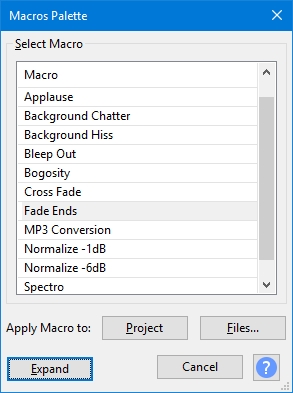
You can manage and apply Macros using the :
Tools > Macros... to manage Macros: them
Tools > Apply Macro > Palette... for a
Tools > Apply Macro > named Macro to
There are some and tips on using them.
Use Tools > Macros... if you need to create a new Macro or to edit an existing Macro.
Use the Shrink button to show a reduced dialog which lists the existing Macros.
This dialog is also available directly via Tools > Apply Macro > Palette...
Both the dialog and the dialog have Apply Macro to buttons:
Project applies the selected Macro to the current project.
Files... applies the selected Macro to selected external audio files that are in a single directory.
For more details see the page.
Commands that call Effects, Generators, Analyzers or Tools, use the same familiar graphical interface (GUI) as appears when they are used from the normal top level menus.
Many of the other commands provide a simple GUI comprised of checkboxes and text entry boxes. Typical examples can be seen in the and menus.
Please see for more details.
You can export a Macro as a TXT file using the Export button in and send it to another user, or copy it to another computer for use there
You can import another user's Macro, or a copied macro of your own, into your Macros folder by using the Import button in .
Each Macro is automatically saved as a separate text file with TXT in the Macros folder in Audacity's folder for application data:
Windows: Users\<username>\AppData\Roaming\audacity\Macros
Mac: ~/Library/Application Support/audacity/Macros
Linux: ~/.audacity-data/Macros
See the page for examples of using Macros
macOS: Open Finder, use the Go menu, choose Go to Folder and type ~/Library/Application Support/audacity/Macros, or set Finder to show your User Library folder.